Around Me — Score Any Location in Real Time
Getting-started Beginner
What is Around Me?Around Me is a real-time location scoring tool that turns wherever you are standing into a photography intelligence dashboard. Inste...
6 min read
Published February 15, 2026
What is Around Me?
Around Me is a real-time location scoring tool that turns wherever you are standing into a photography intelligence dashboard. Instead of checking saved locations one by one, Around Me instantly scores your current GPS coordinates against every photography profile you have created — showing you exactly what conditions look like right now and over the coming days.
Think of it as a quick scout. You are driving through an unfamiliar area and spot a great-looking foreshore — open Around Me and within seconds you will know whether the sunset is worth waiting for, what the tide is doing, and where the sun will set relative to your position.
Opening Around Me
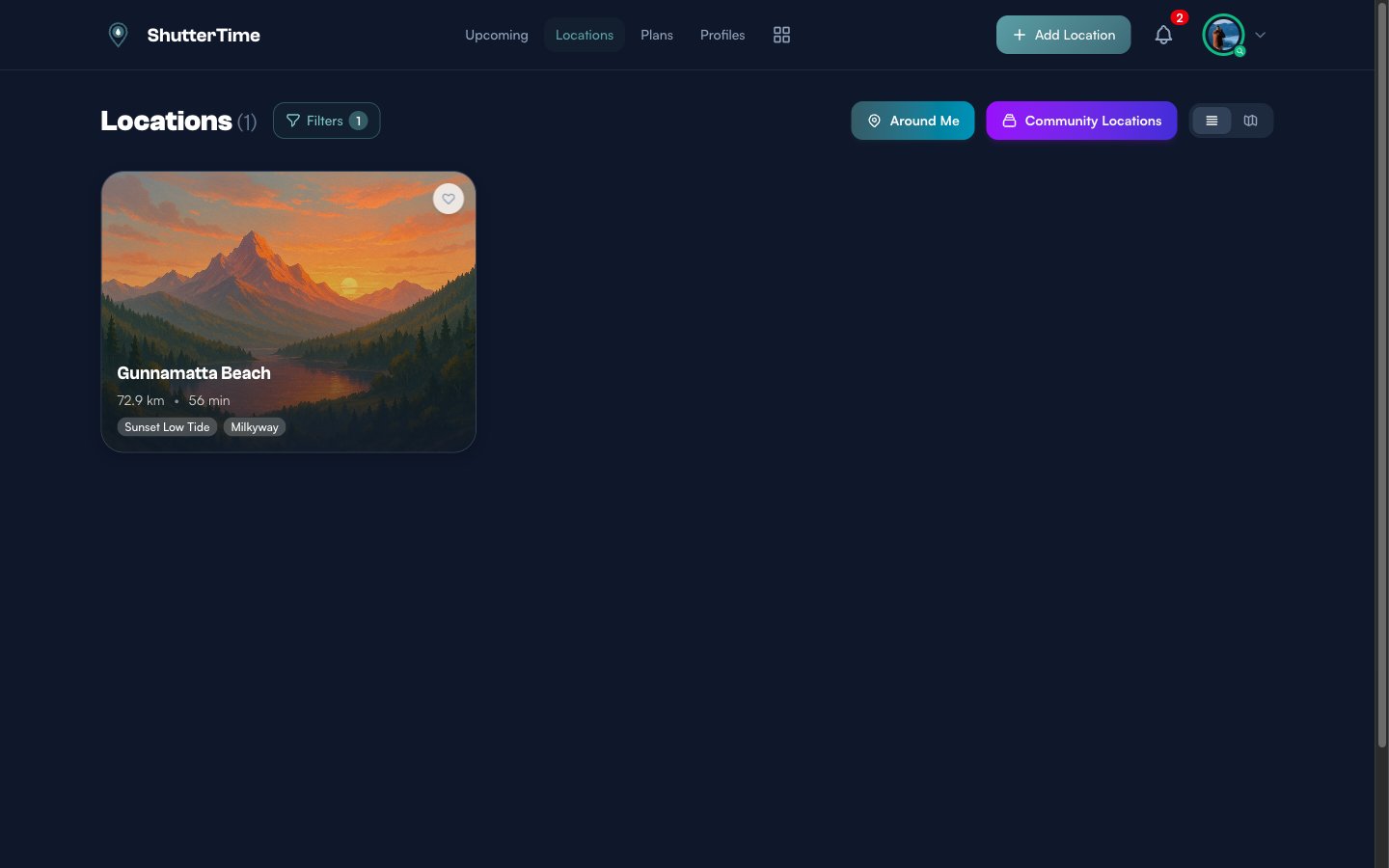
Navigate to the Locations page by clicking Locations in the navigation bar. At the top of the page you will see two shortcut buttons — Around Me and Community Locations. Click the teal Around Me button to launch the tool.
Letting ShutterTime Find You
When Around Me opens, ShutterTime requests your GPS position through the browser. If you grant permission, coordinates are detected automatically and scoring begins within seconds. You will see a brief loading animation while ShutterTime analyses sun positions, weather, and tides for your location.
If GPS is unavailable — for example when you are indoors or using a desktop browser without location services — ShutterTime switches to manual mode. A search bar appears where you can type an address or place name. Google Places autocomplete helps you find the right spot quickly. You can also drag the map marker to fine-tune the exact position.
Understanding the Results
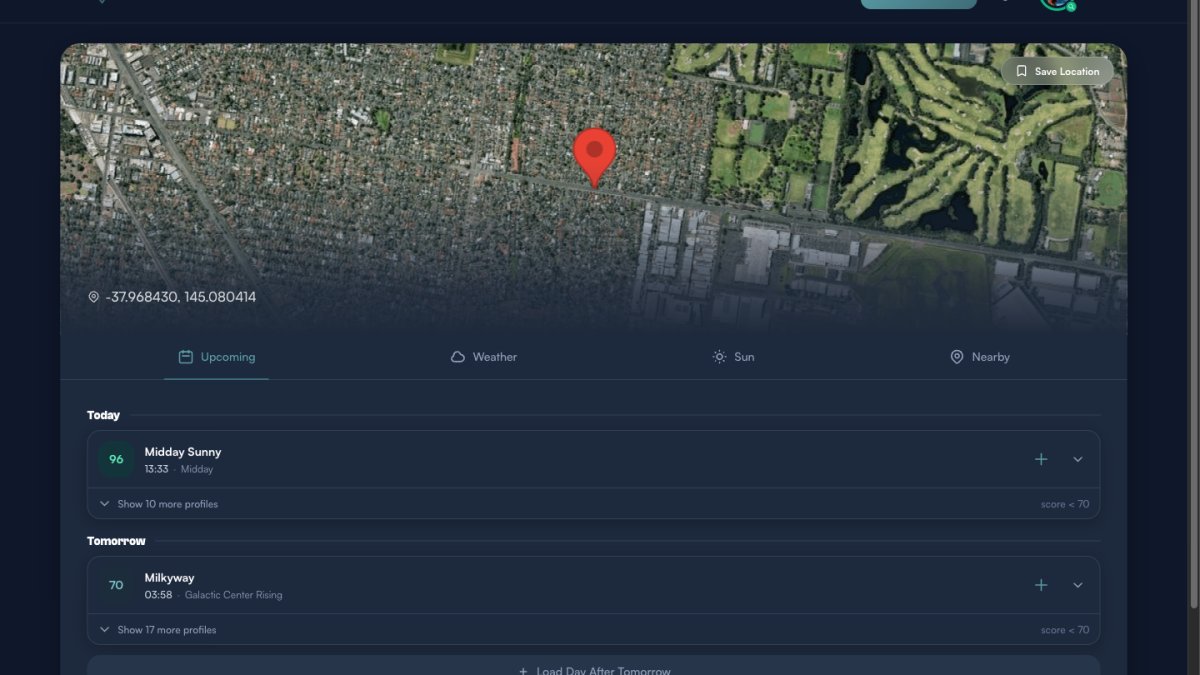
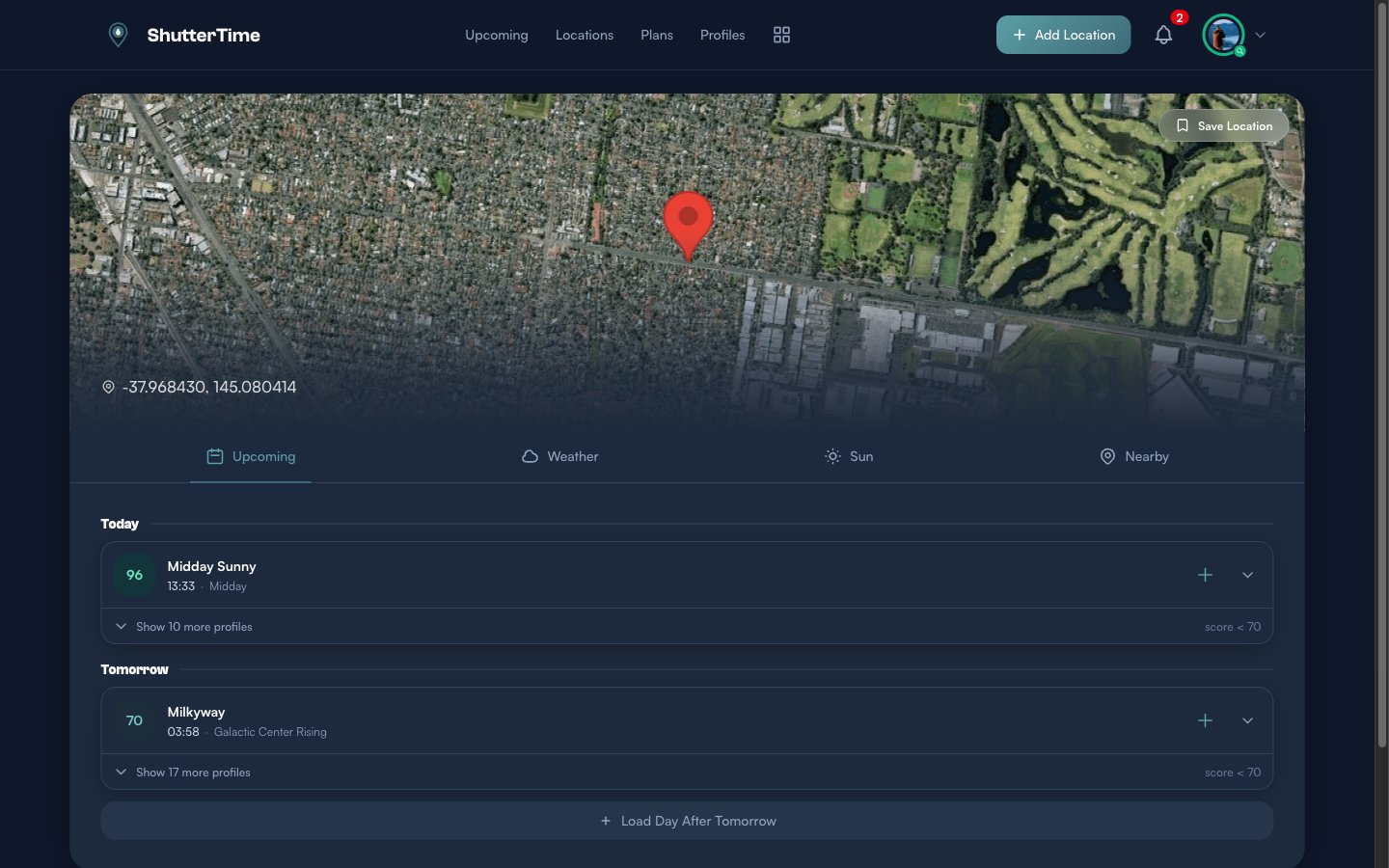
Once scoring completes, the Around Me page displays a satellite map of your position with a red marker and your GPS coordinates shown below. A Save Location button sits in the top-right corner of the map. Below the map, four tabs let you explore different aspects of the conditions at your location.
Browsing Upcoming Opportunities
The Upcoming tab is the default view. It groups photography opportunities by day — starting with Today and continuing into future days. Each opportunity card shows:
- Score badge — A colour-coded number from 0 to 100. Green scores (80+) mean excellent conditions, teal (60–79) is good, amber (40–59) is fair, and grey (below 40) is poor.
- Profile name — Which photography profile was scored (e.g. Midday Sunny, Milkyway, Sunset).
- Time and phase — When the opportunity occurs and during which astronomical phase (e.g. Midday, Galactic Center Rising, Sunset).
- Create plan button — The plus icon lets you quickly create a photography plan for this opportunity.
- Expand button — The chevron reveals the full condition breakdown.
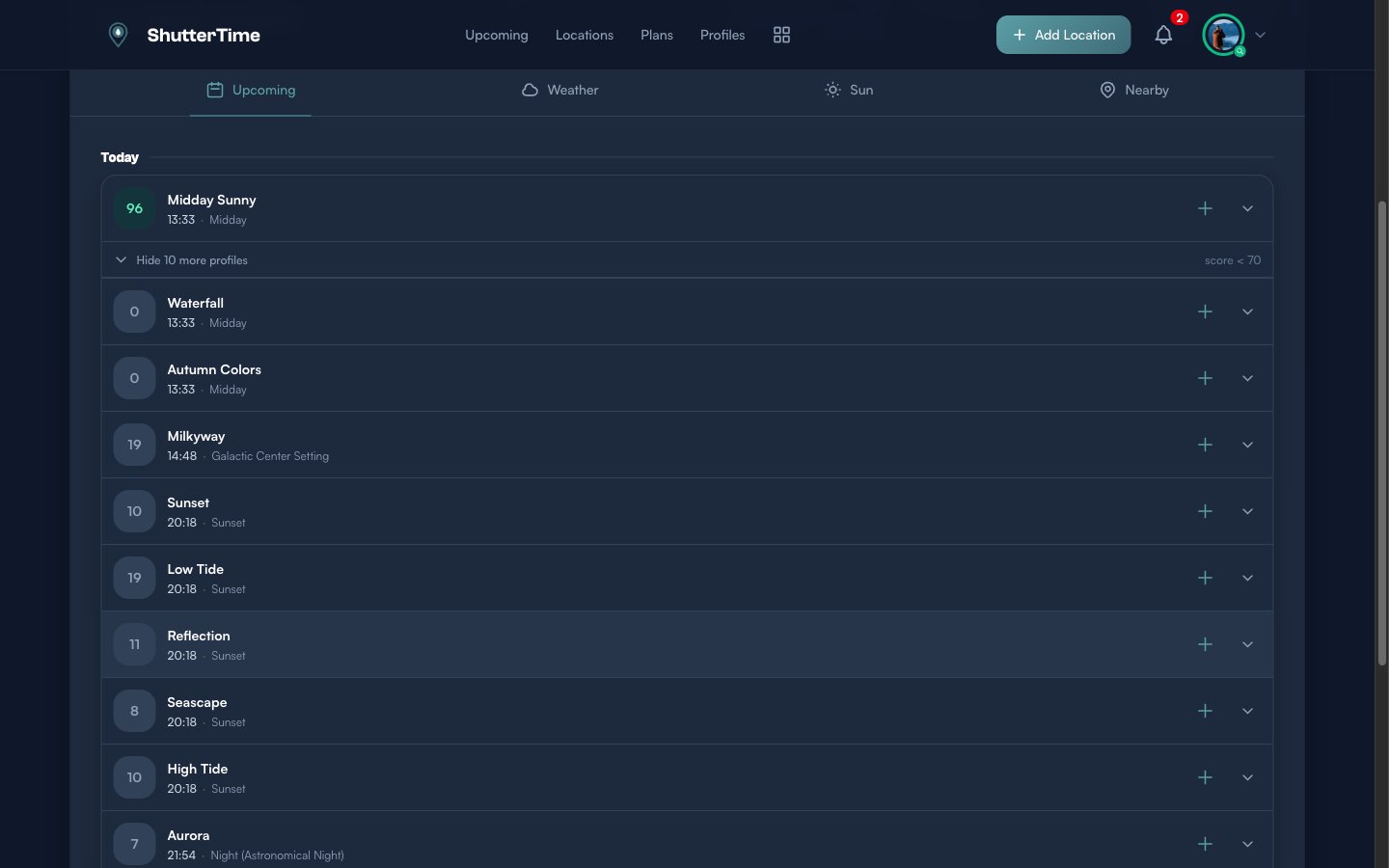
By default, only high-scoring opportunities (70 or above) are shown prominently. Lower-scoring profiles are collapsed behind a Show more profiles button so the best opportunities stand out.
Expanding an Opportunity
Click the expand chevron on any opportunity card to see a detailed condition breakdown. Each condition that contributes to the score is listed with its own bar and value — for example Clear Cloud at 100, Horizon Low Cloud at 14, and Rain at 0. This helps you understand exactly why a score is high or low and which conditions are limiting the result.
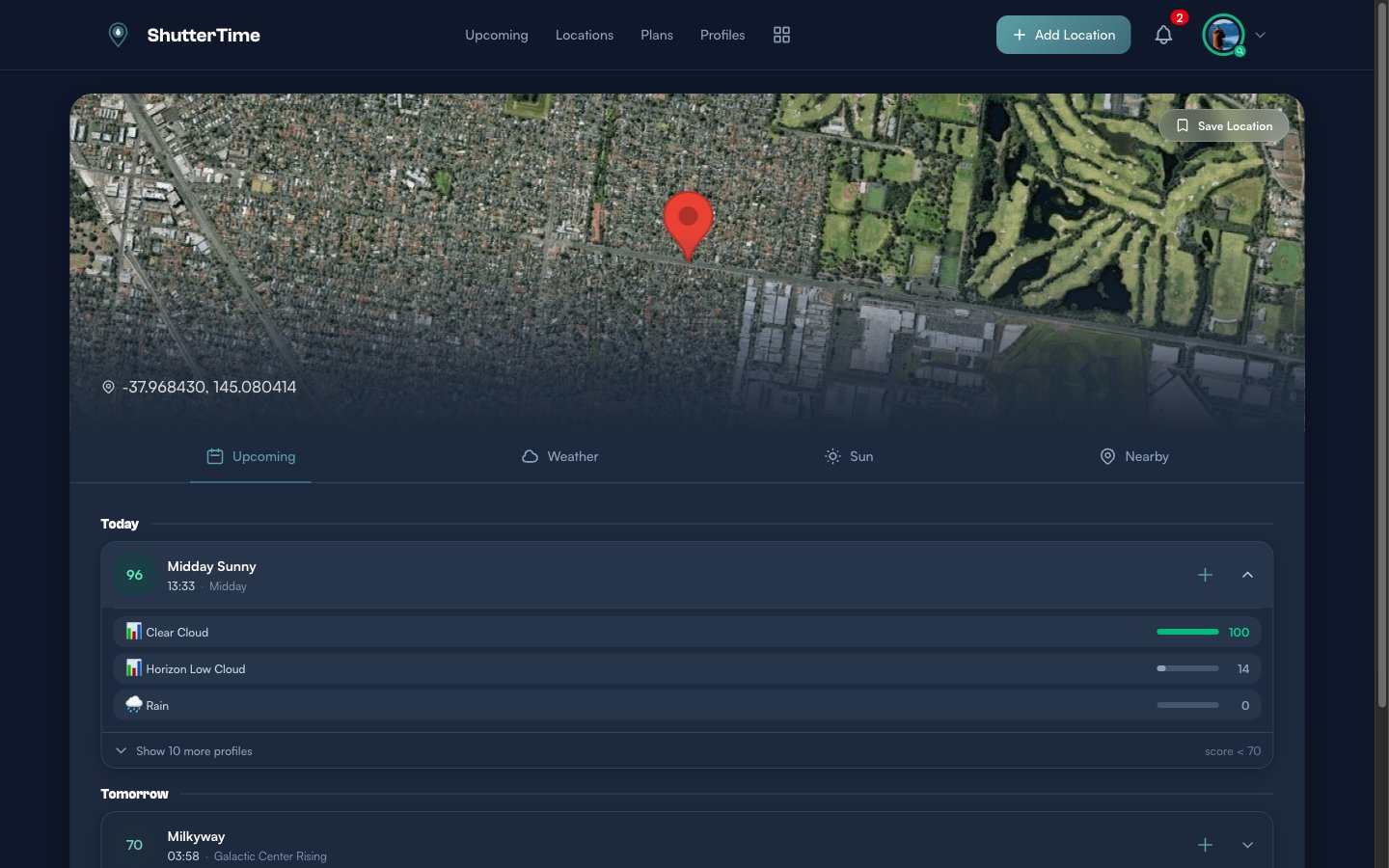
You can also load additional days by clicking Load Day After Tomorrow at the bottom. ShutterTime can forecast up to seven days ahead.
Checking the Weather
Switch to the Weather tab to see an hourly forecast for your location. A Current Conditions card at the top shows the temperature, weather description, cloud cover, and wind speed right now.
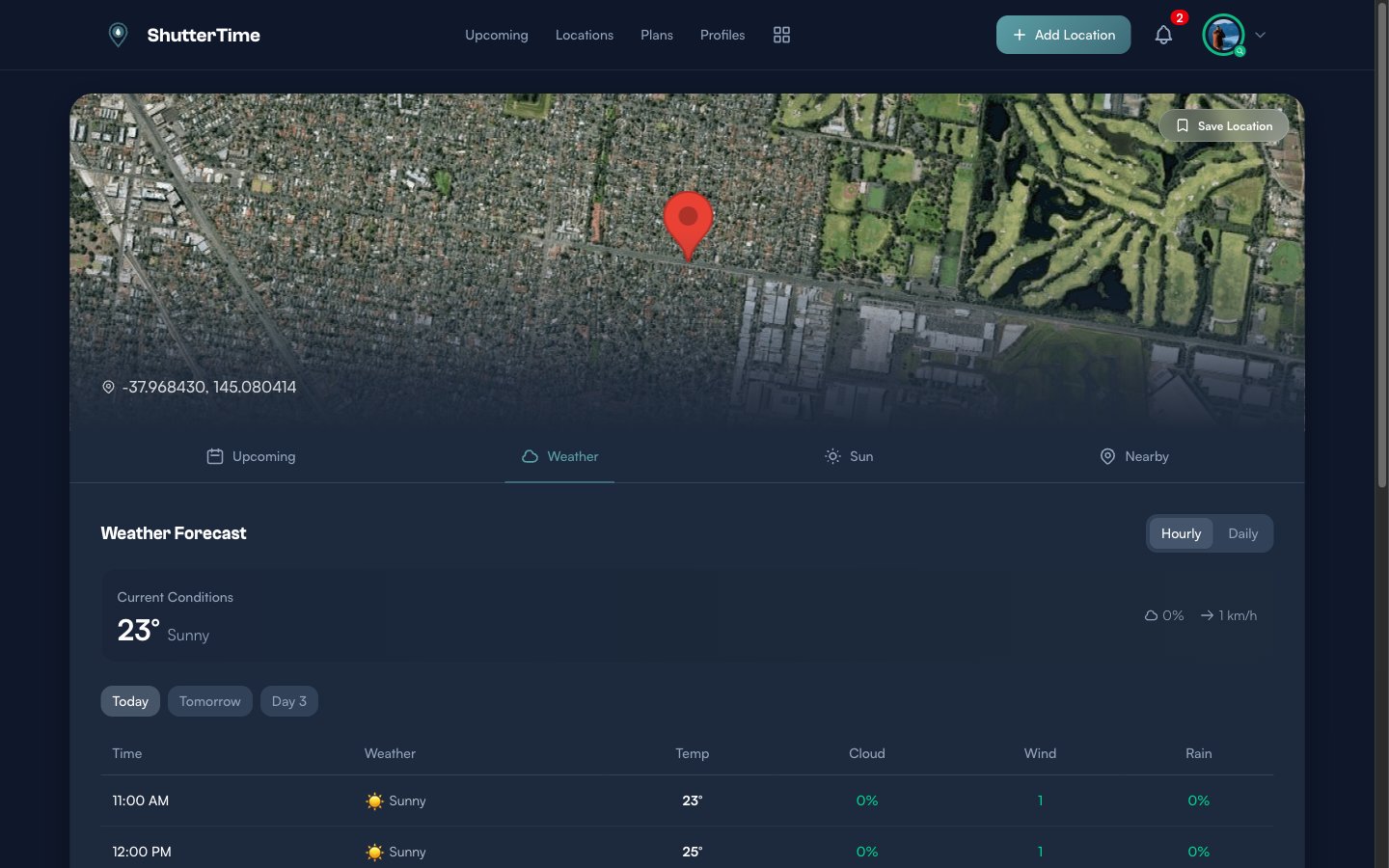
Below the summary, a table lists hourly data including temperature, cloud percentage, wind speed, and rain probability. Use the day selector buttons — Today, Tomorrow, Day 3 — to jump between days. Toggle between Hourly and Daily views using the buttons in the top-right corner.
Reading the Sun Position
The Sun tab shows where the sun rises and sets relative to your position. A satellite map displays directional lines — the orange lines trace the sunrise and sunset azimuths, so you can see exactly which way the light falls at your location.
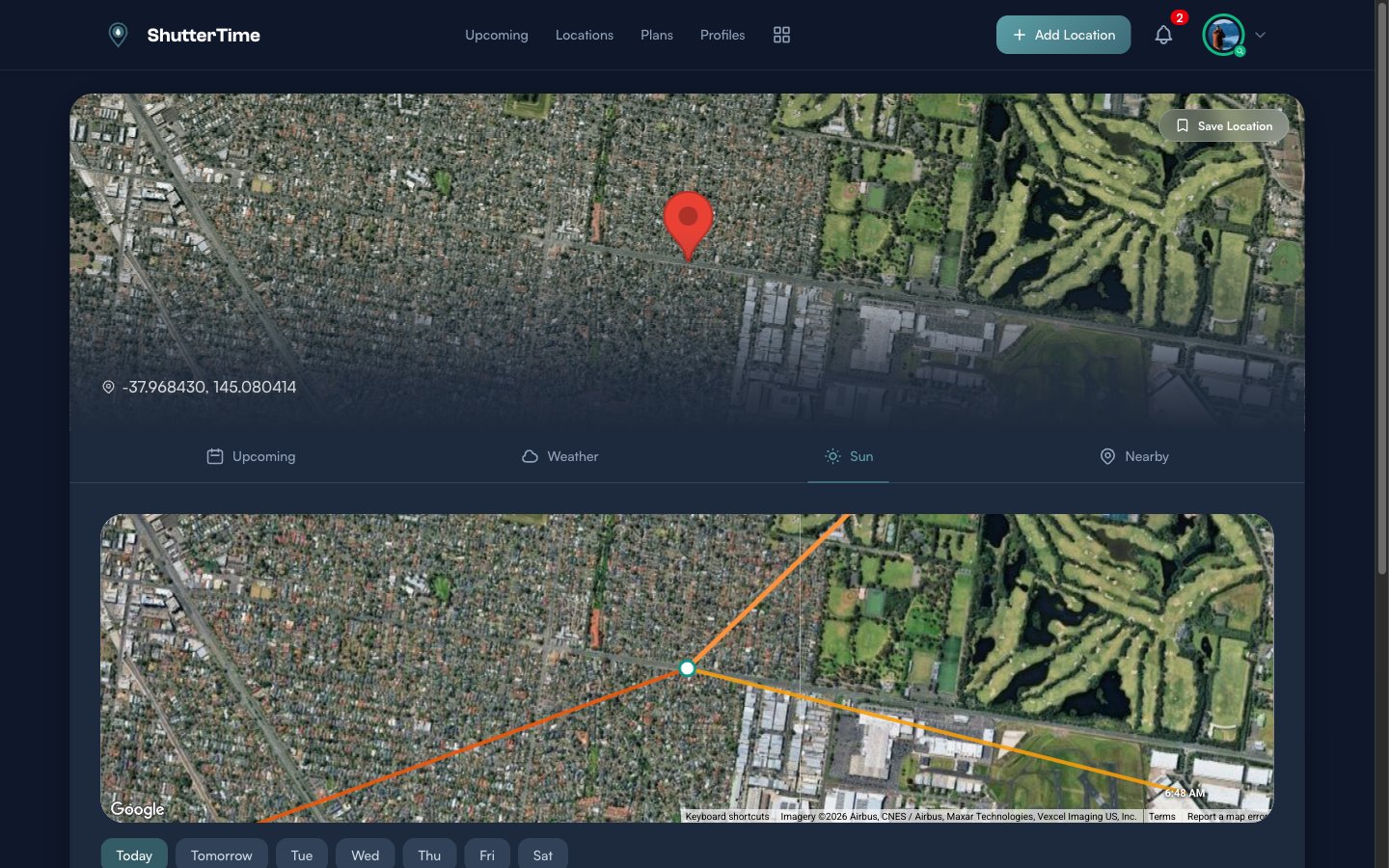
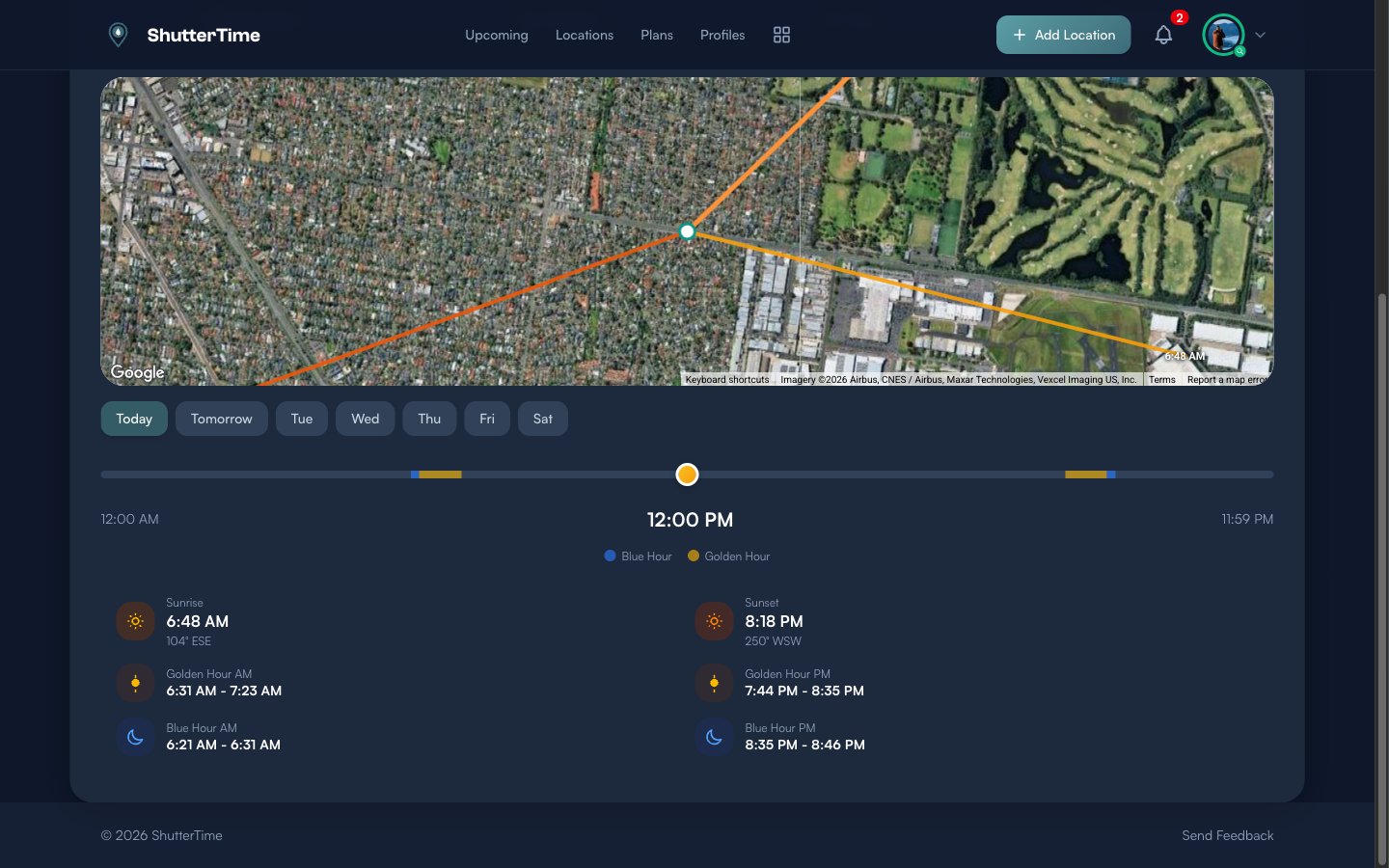
Below the map, a timeline slider lets you scrub through the entire day. Colour-coded segments mark Blue Hour (blue) and Golden Hour (amber) windows. Drag the handle to see how the sun position changes at any time.
Detailed cards below the slider show exact times and compass bearings for Sunrise, Sunset, Golden Hour AM/PM, and Blue Hour AM/PM. Use the day selector to check sun positions for any day in the coming week.
Finding Nearby Locations
The Nearby tab searches for saved locations within 10 kilometres of your current position. If you have photography spots saved nearby, they appear here with their distance and best score — making it easy to decide whether to visit a known spot instead.
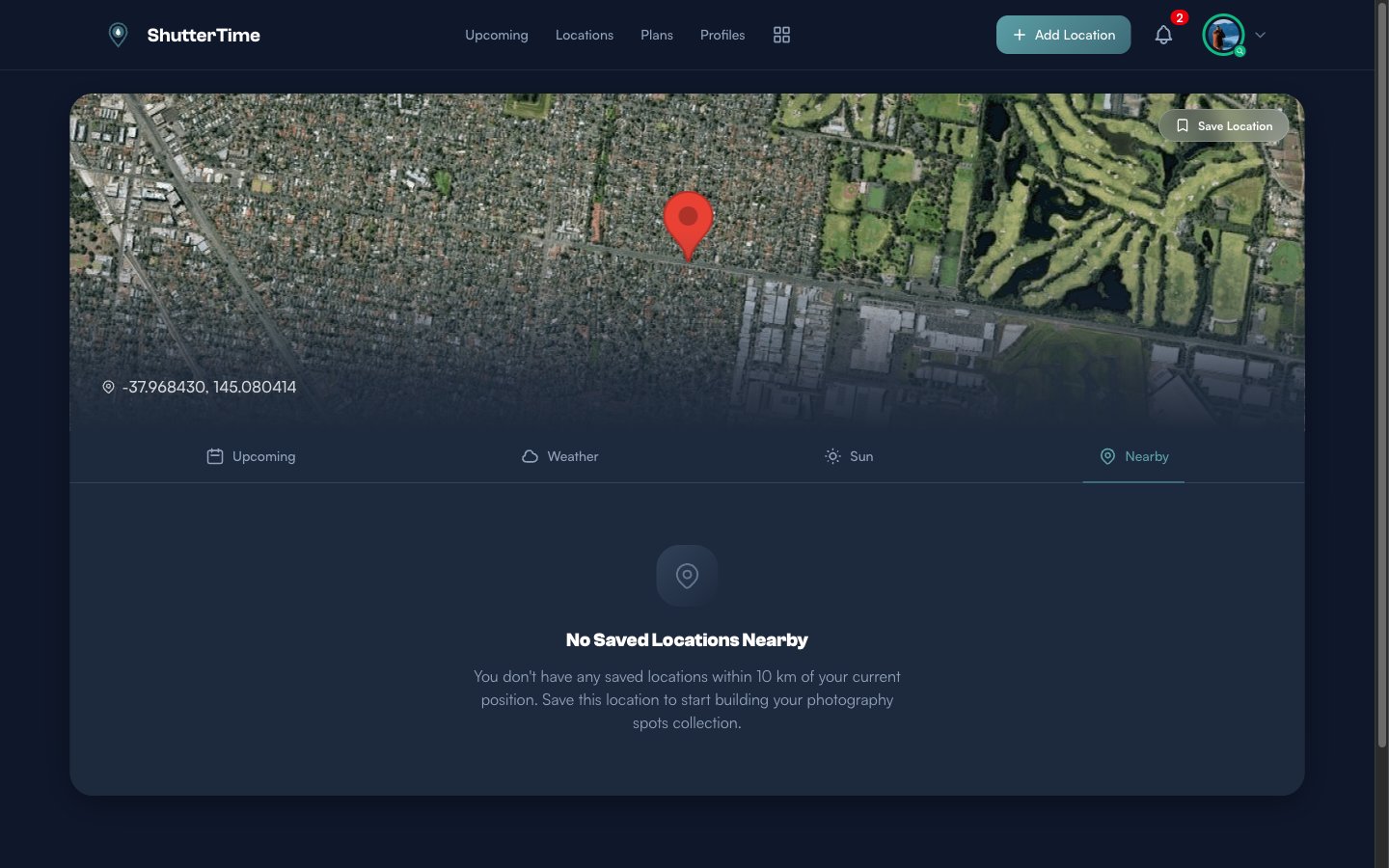
If no saved locations are nearby, the empty state encourages you to save the current spot. Over time, as you build your location collection, the Nearby tab becomes a quick way to find your favourite spots when you are out and about.
Saving a New Location
Found a promising spot? Click the Save Location button in the top-right corner of the map. ShutterTime instantly creates a new location in your collection using the detected coordinates and reverse-geocoded name, then takes you to the location detail page.
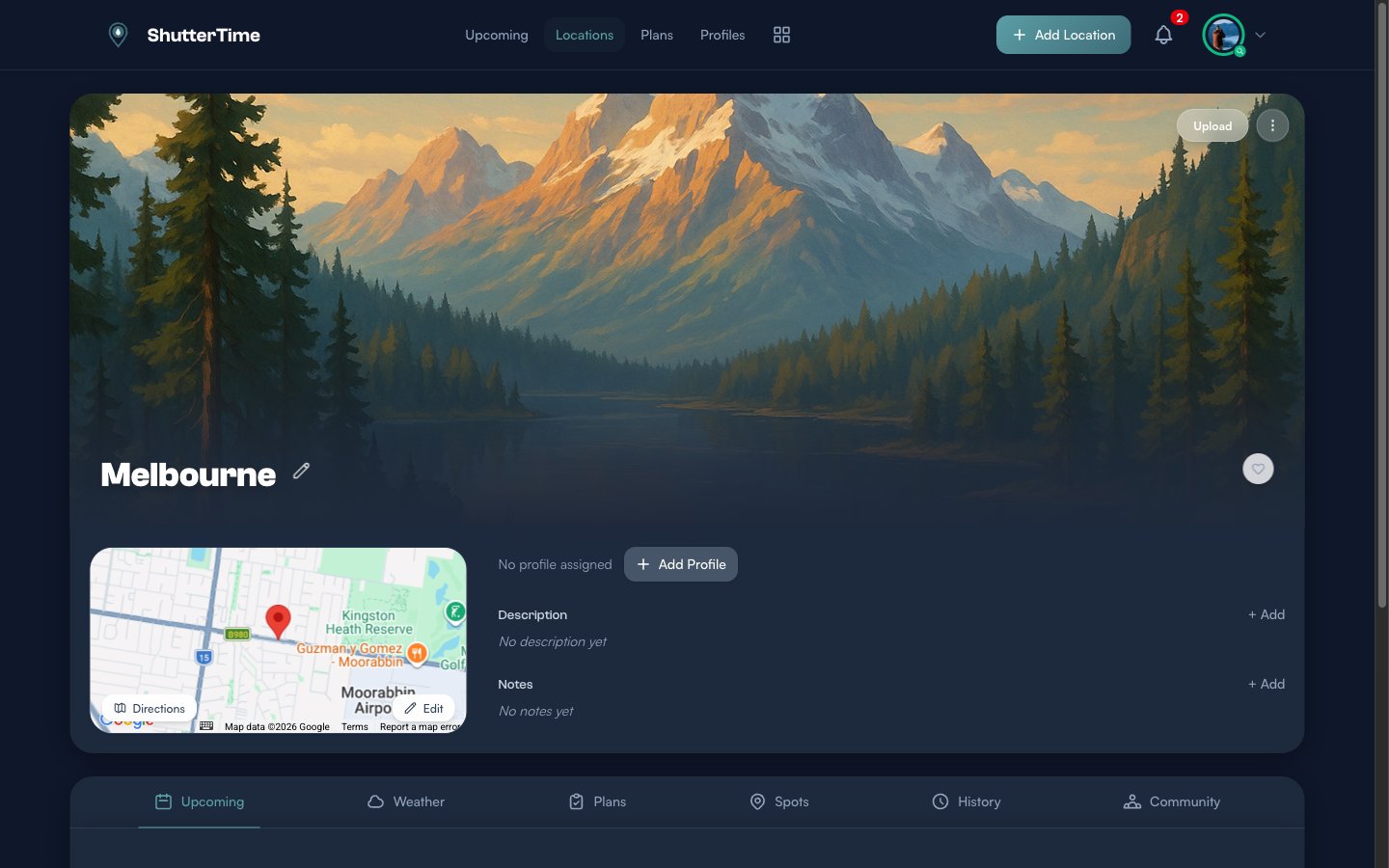
From the detail page you can:
- Attach profiles — Click + Add Profile to assign photography profiles like Sunset, Milkyway, or Low Tide. This tells ShutterTime what conditions to score for this spot.
- Add a description and notes — Record what makes this location special and any tips for shooting there.
- Upload a photo — Replace the default hero image with your own photograph of the location.
- Rename the location — Click the pencil icon next to the name to give it a more memorable title.
What's Next?
Now that you know how to score any location on the fly, here are some things to explore:
- Browse your locations — See all your saved spots sorted by distance, with filters for profiles and favourites
- Create custom profiles — Build photography profiles that match your shooting style, so Around Me scores against exactly the conditions you care about
- Manage your plans — Review upcoming photography plans across all locations in one place
- Explore the community — Discover and install location packs shared by other photographers