Auto-Watch — Let ShutterTime Create Plans for You
Tips-tricks Intermediate
Tired of constantly checking scores and manually creating plans? Auto-Watch monitors your favourite locations and automatically creates photography pl...
4 min read
Published February 15, 2026
Tired of constantly checking scores and manually creating plans? Auto-Watch monitors your favourite locations and automatically creates photography plans when conditions meet your target — so you never miss a great shoot.
This guide walks you through setting up Auto-Watch, configuring your thresholds, and managing the plans it creates for you.
What Is Auto-Watch?
Auto-Watch is a feature available on Alpine and Summit subscription tiers that continuously monitors a location's conditions against a photography profile you choose. When a phase scores above your minimum threshold, ShutterTime automatically creates a plan for you — complete with the best time to arrive and the optimal shooting window.
Here's what happens behind the scenes:
- ShutterTime checks conditions every 3 hours, looking 48 hours ahead
- It evaluates all phases for the profile you selected (e.g., all sunset phases for a Sunset profile)
- Only the best phase (highest score) gets a plan each day — no duplicates
- You receive a notification when a plan is auto-created
Enabling Auto-Watch on a Location
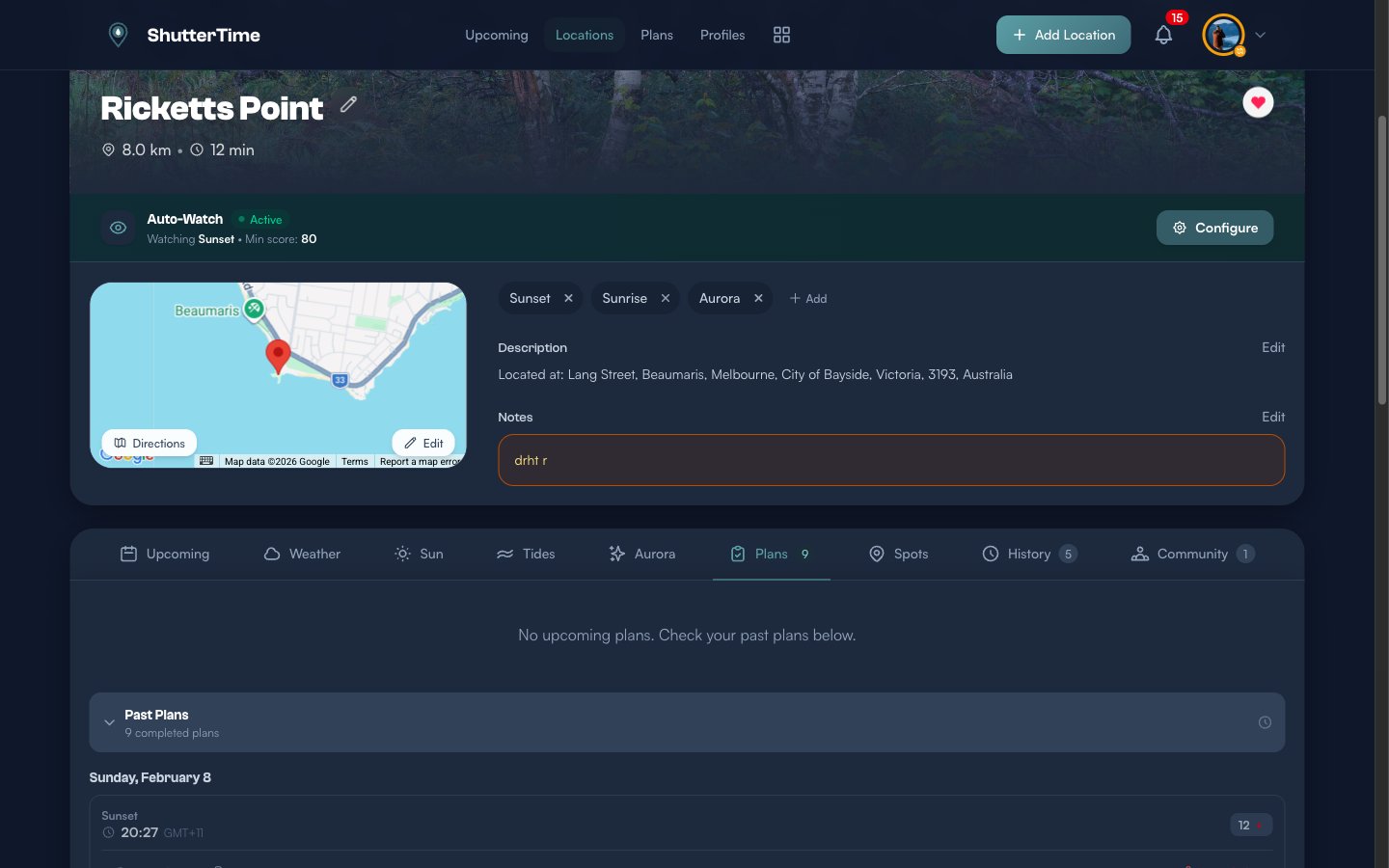
Open any location that has at least one photography profile assigned. You'll see the Auto-Watch banner just below the location header.
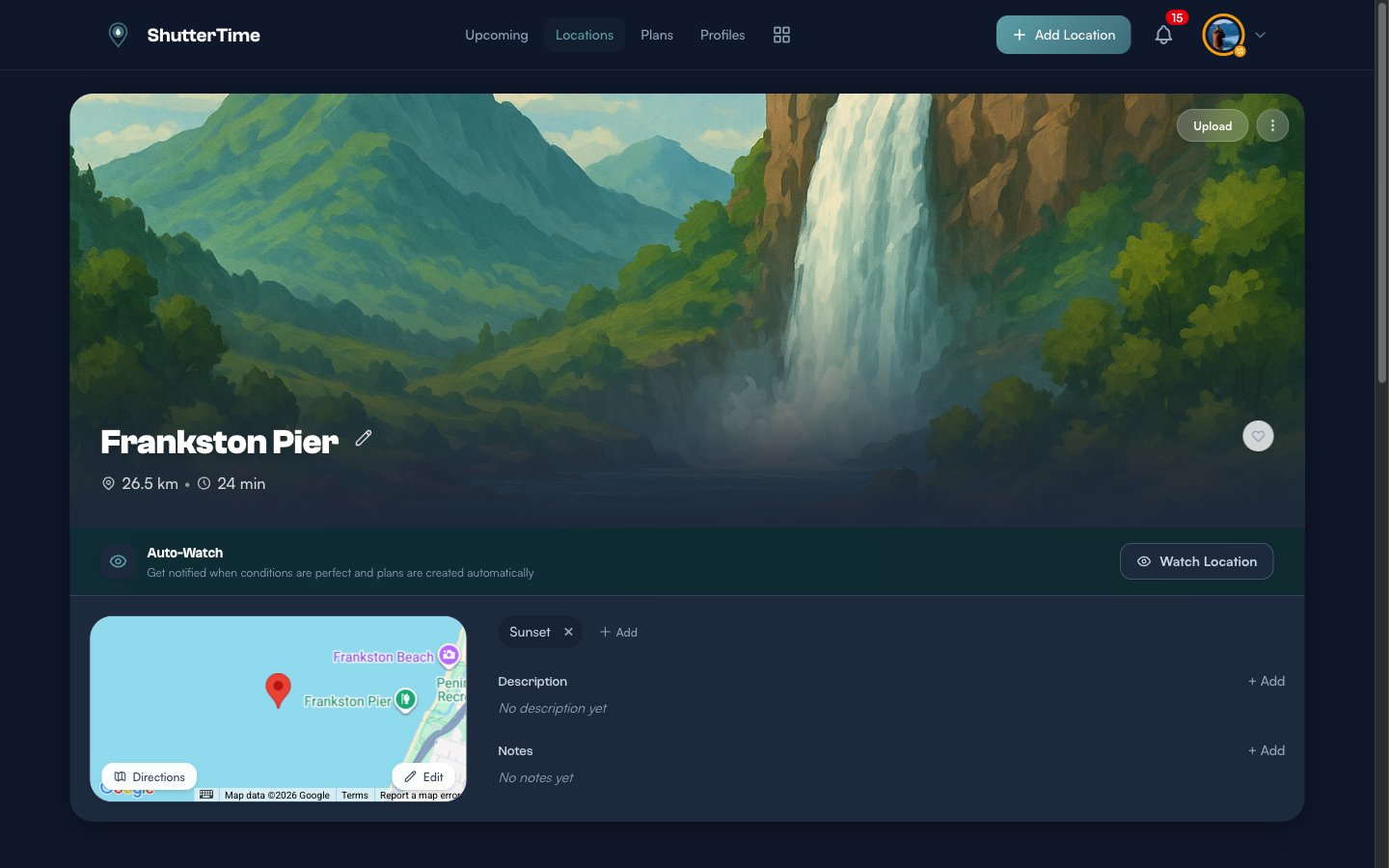
Click the Watch Location button to enable Auto-Watch. If Auto-Watch is already active, the banner displays the status with a green Active indicator, along with the profile being watched and the minimum score threshold.
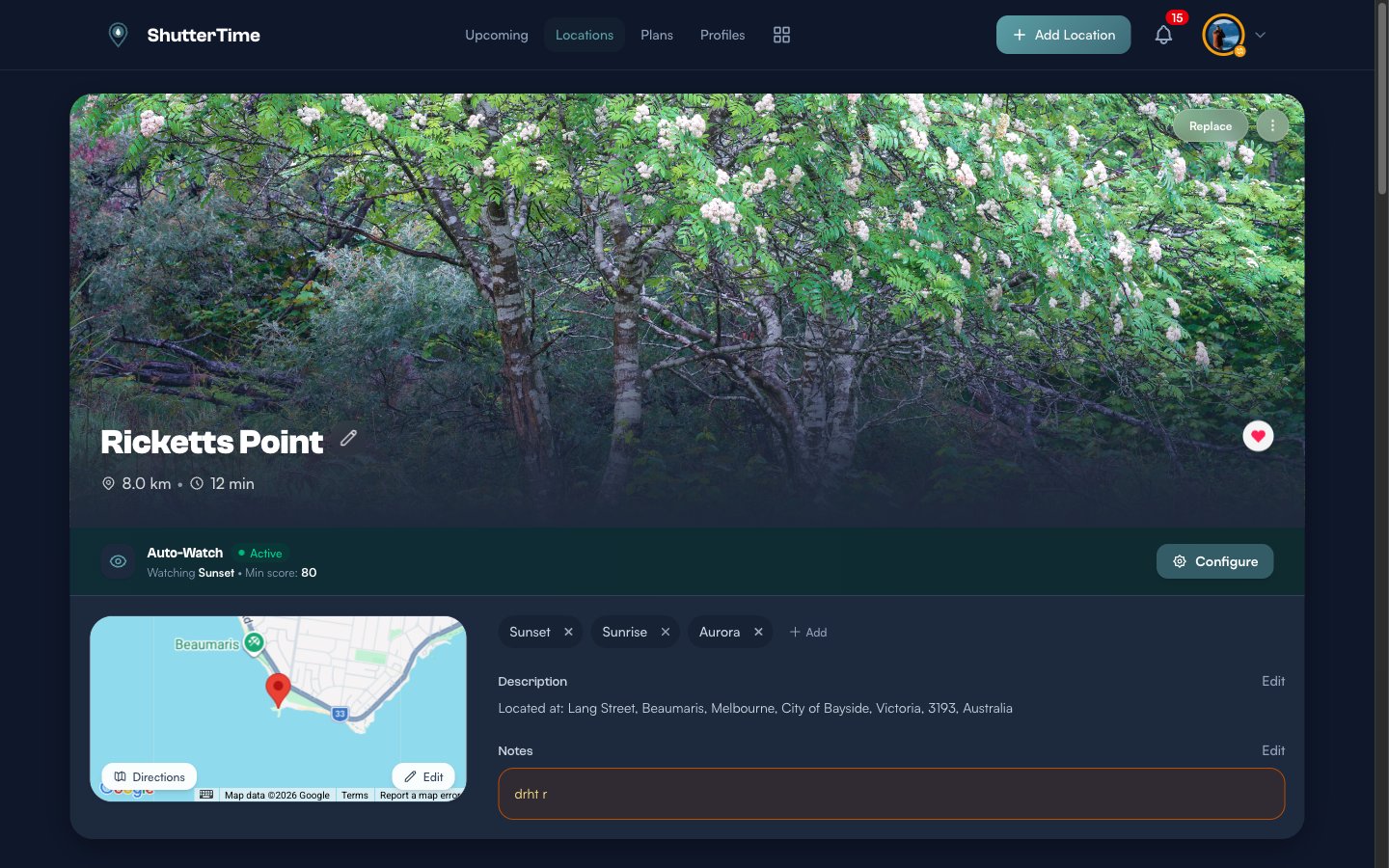
Configuring Auto-Watch Settings
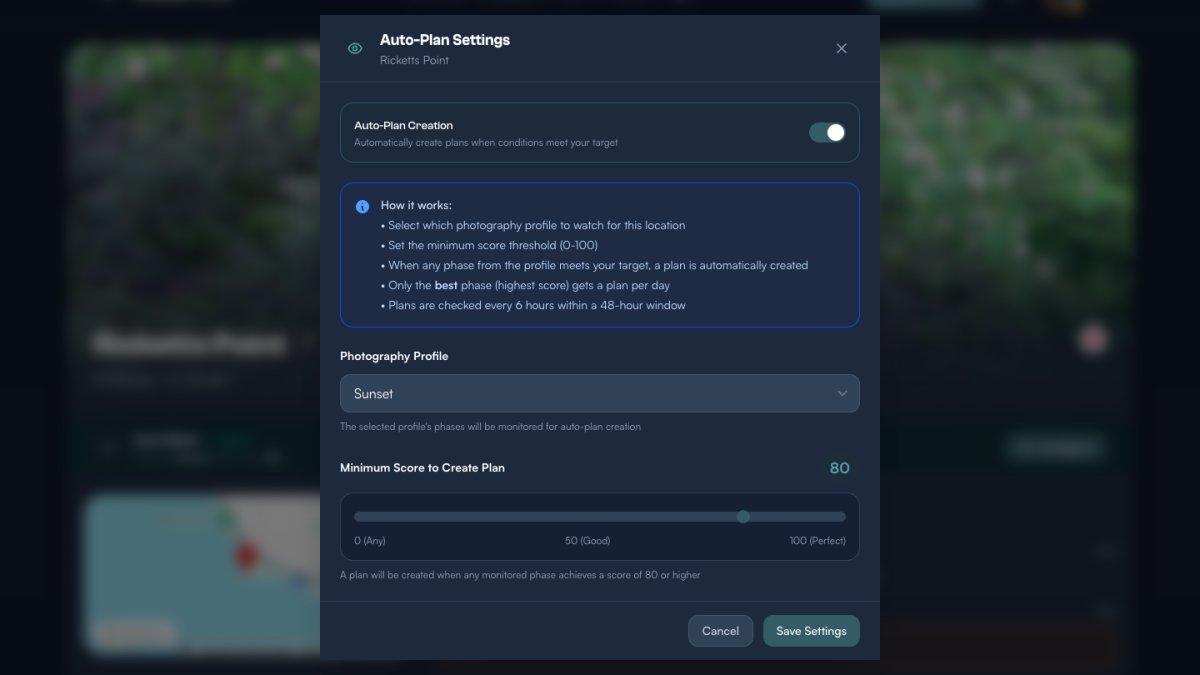
Click the Configure button on an active Auto-Watch banner to open the settings modal. Here you can fine-tune exactly how Auto-Watch behaves for this location.
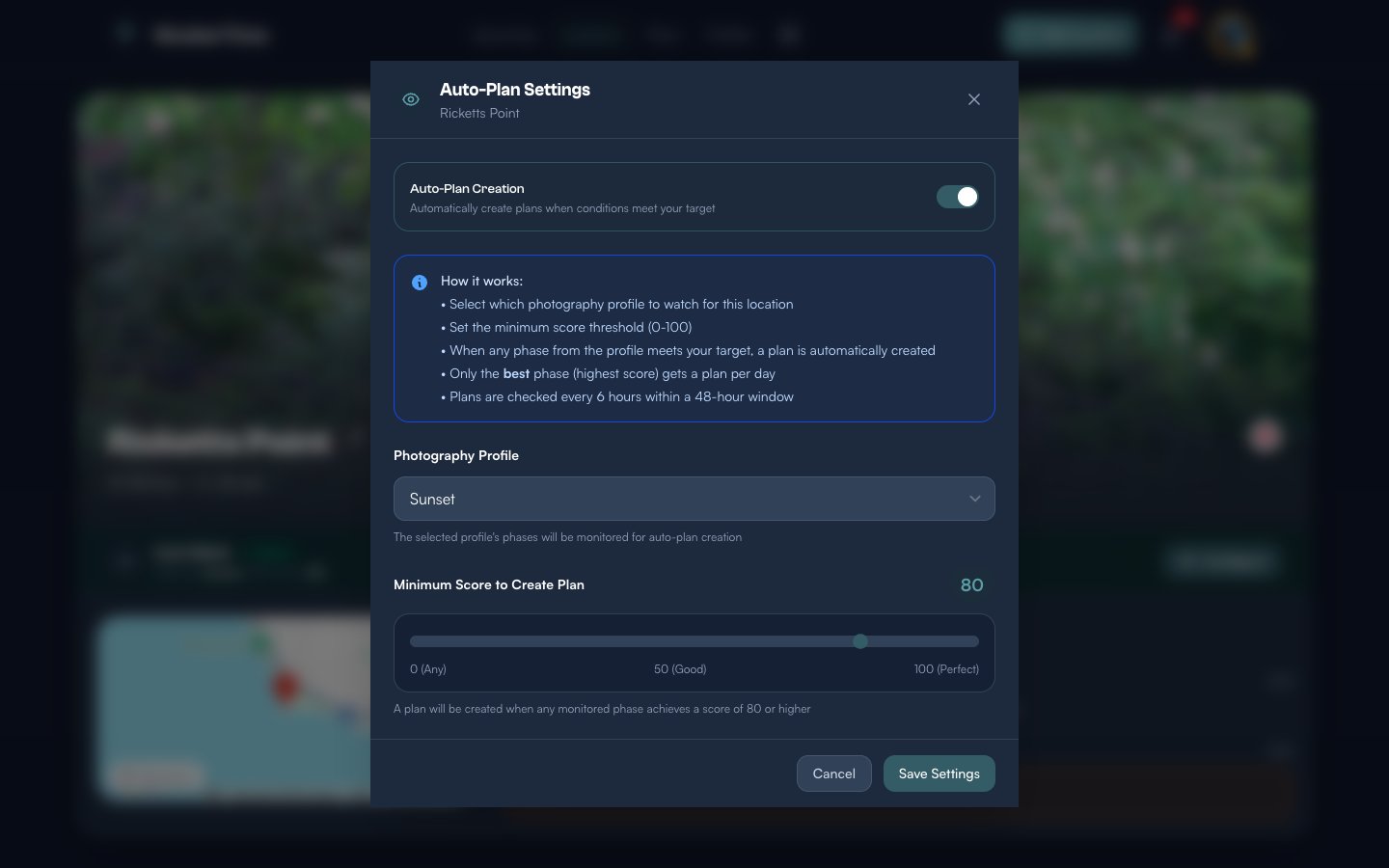
The settings modal gives you three controls:
- Auto-Plan Creation toggle — Turn automatic plan creation on or off for this location without removing the watch entirely.
- Photography Profile — Choose which profile to monitor. The dropdown lists all profiles assigned to this location (e.g., Sunset, Sunrise, Aurora). ShutterTime evaluates every phase within the selected profile.
- Minimum Score to Create Plan — Drag the slider from 0 (Any) to 100 (Perfect). A score of 80 is a good starting point — it ensures conditions are genuinely good without being so strict that plans rarely trigger. Lower this if you want more plans, raise it if you only want exceptional conditions.
Click Save Settings when you're happy with the configuration.
The Global Auto-Plan Toggle
In addition to per-location settings, there's a global toggle in your account preferences. Navigate to Account Settings → Preferences tab. Under Notification Types, you'll find the Auto-Plan Creation checkbox.
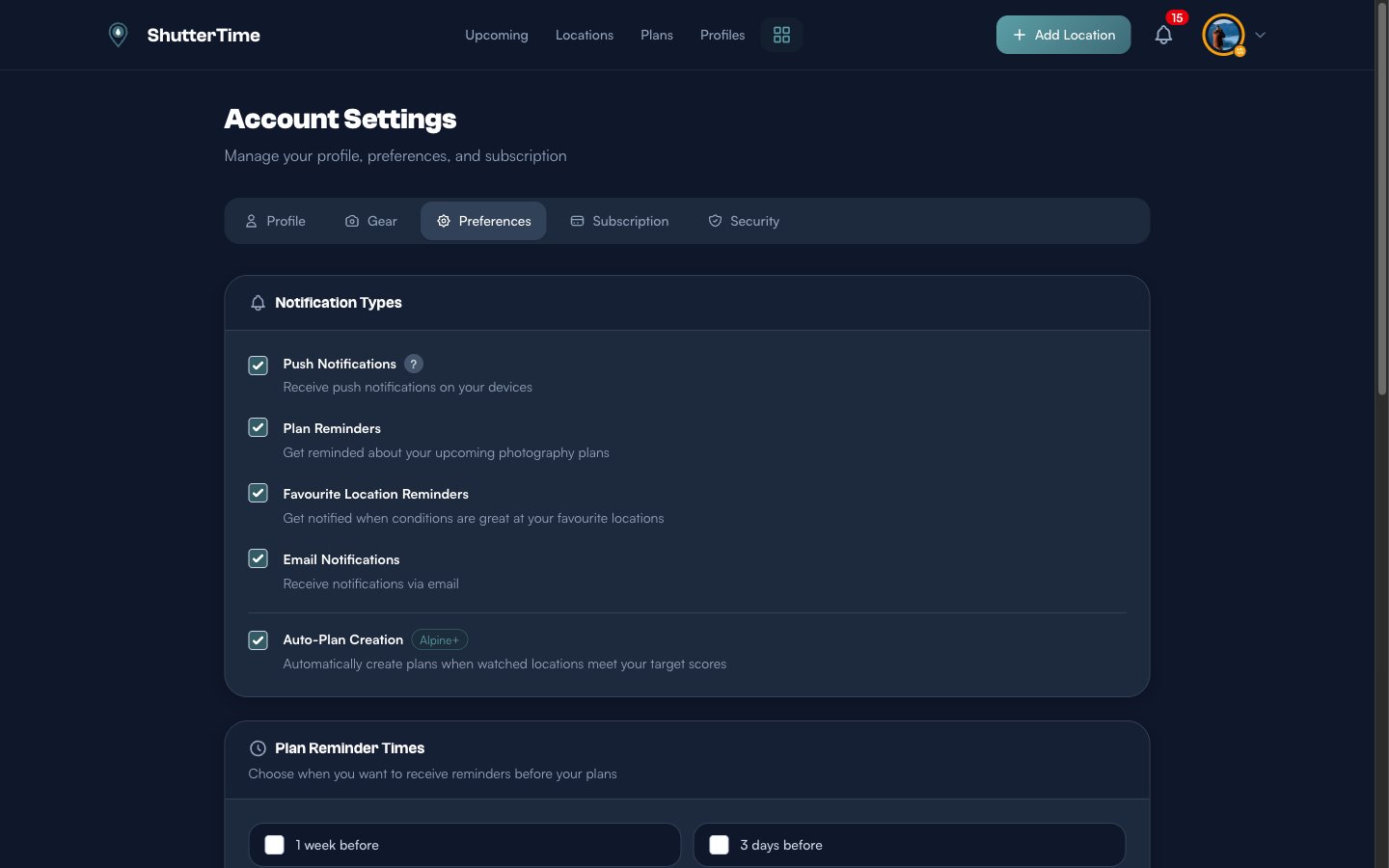
This is a master switch — when disabled, no Auto-Watch locations will create plans, even if they're individually set to active. The Alpine+ badge next to it indicates this feature requires an Alpine or Summit subscription.
How Many Locations Can You Watch?
The number of locations you can auto-watch depends on your subscription tier:
- Trailhead (free) — Auto-Watch is not available
- Alpine — Watch up to 3 locations simultaneously
- Summit — Unlimited watched locations
If you're on the Alpine plan and want to watch a new location after reaching the limit, you'll need to remove an existing watch first.
Reviewing Auto-Created Plans
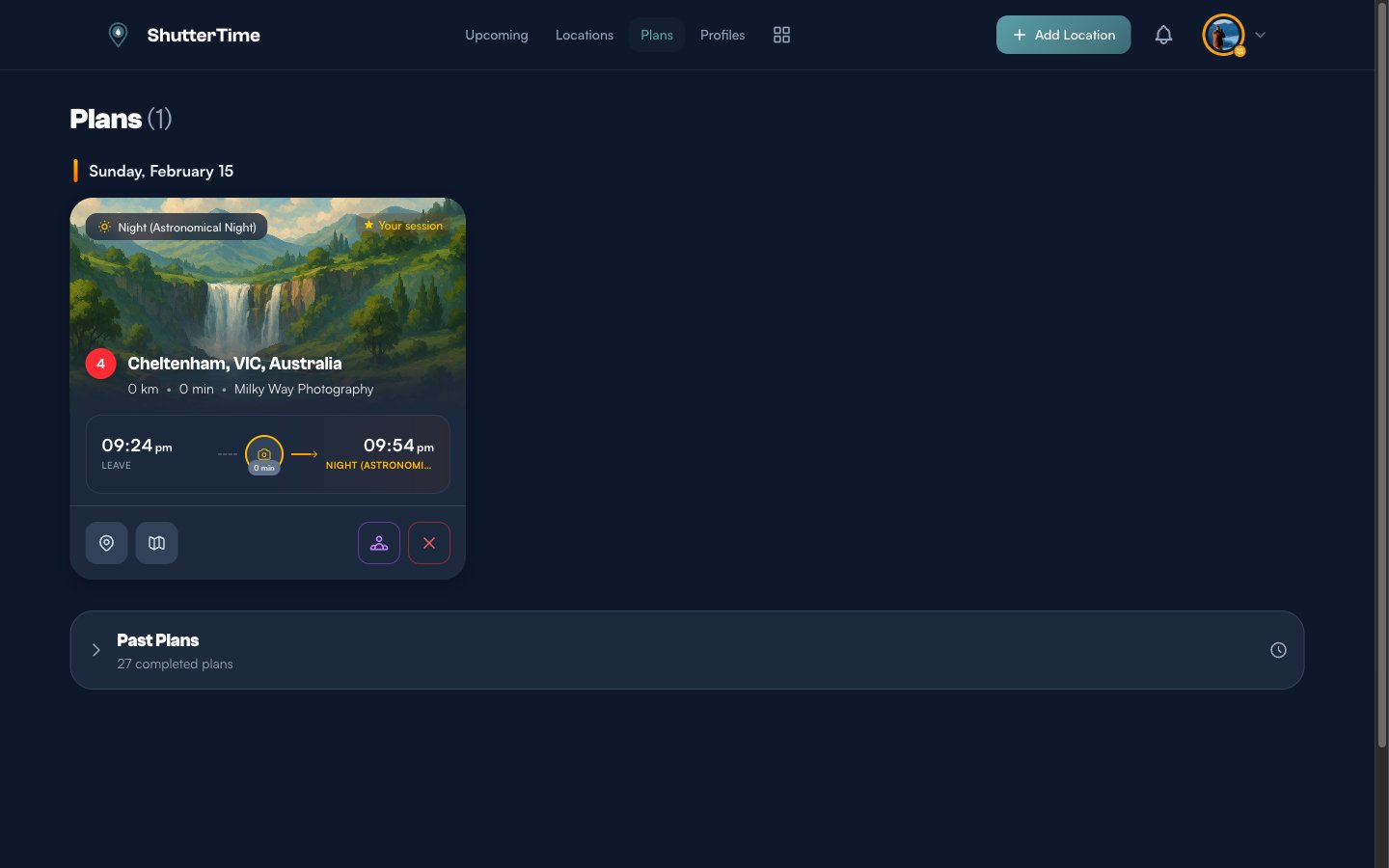
When Auto-Watch creates a plan, it appears on your Plans page alongside plans you've created manually. Auto-created plans look and behave exactly like regular plans — you can view details, invite collaborators, get directions, or cancel them.
You can also see all plans for a specific location by visiting the location page and switching to the Plans tab. This gives you a complete history of both manual and auto-created plans for that spot.
Tips for Getting the Most Out of Auto-Watch
- Start with a score of 80 — This is the sweet spot between getting regular plans and ensuring quality conditions. Adjust after a week based on how many plans you receive.
- Match the profile to the location — If a coastal location shines at sunset, set the profile to Sunset. Auto-Watch evaluates all phases within that profile, so you'll catch golden hour, blue hour, and civil twilight automatically.
- Enable plan reminders — In Preferences, set up Plan Reminder Times so you get a heads-up before auto-created plans. A reminder 6 hours before gives you time to prepare.
- Check your watched locations periodically — Seasons change conditions dramatically. A winter sunrise location might need different thresholds in summer.
- Combine with Favourites — Auto-Watch creates plans; Favourite Location Reminders send alerts without creating plans. Use both for comprehensive coverage.
What's Next?
Now that Auto-Watch is handling plan creation, explore these related features:
- Photography Profiles — Create and customise the profiles that Auto-Watch monitors
- Plans — Review and manage all your photography plans in one place
- Favourites & Notifications — Set up alerts for your favourite locations
- Locations & Spots — Organise your photography locations and spots