Favourites & Notifications — Never Miss a Great Shoot
Getting-started Beginner
Why Use Favourites?When your location collection grows, finding the spots you care about most can take time. Favourites let you bookmark your best pho...
5 min read
Published February 15, 2026
Why Use Favourites?
When your location collection grows, finding the spots you care about most can take time. Favourites let you bookmark your best photography locations so you can filter, sort, and receive automatic condition alerts for the places that matter most.
Think of favourites as your shortlist. Rather than scrolling through dozens of saved locations before a shoot, you can pull up just your favourites and compare conditions across them instantly.
Saving a Location to Favourites
Every location card on the Locations page displays a heart icon in the top-right corner. Tap the heart to add a location to your favourites — it turns red to confirm the save. Tap it again to remove it.
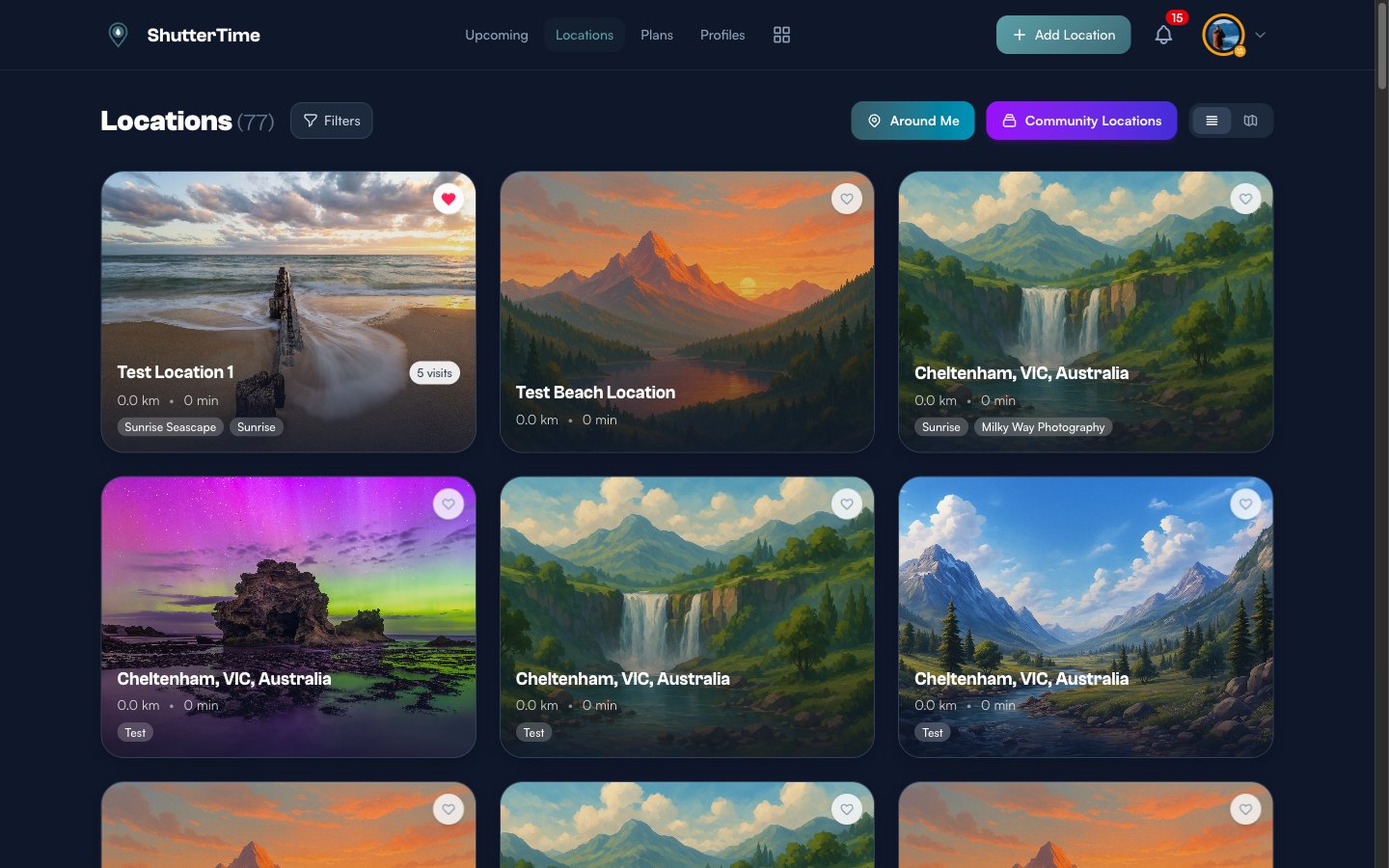
You can also favourite a location from its detail page — the heart button appears in the same position on the hero image.
Once you tap the heart, the icon fills red immediately. ShutterTime saves your choice and starts including that location in your favourite-based alerts.
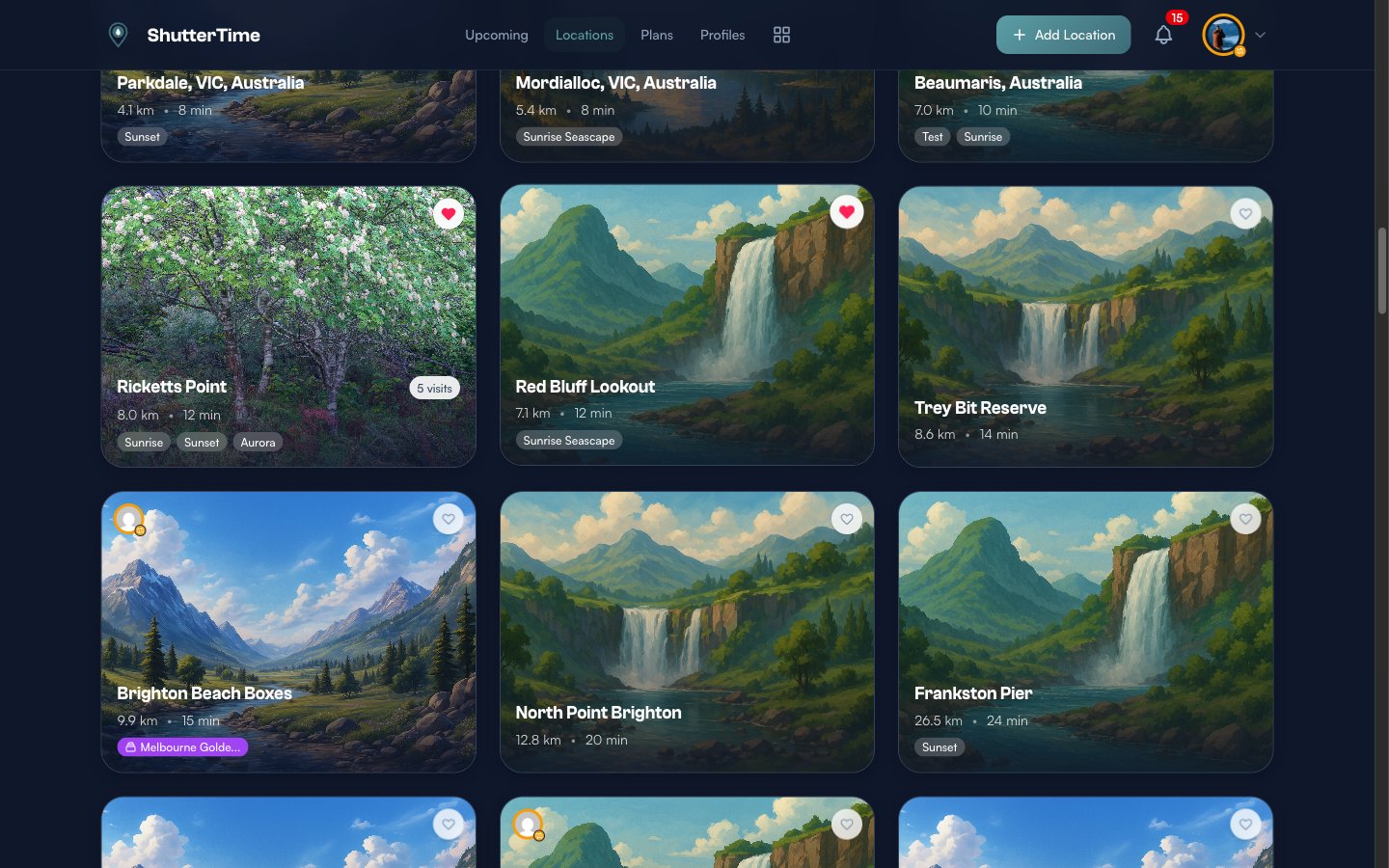
Browsing Your Favourites
To see only your favourited locations, click Filters at the top of the Locations page. In the filter panel, find the Favorites dropdown and select Favorites. Click Apply Filters to update the list.
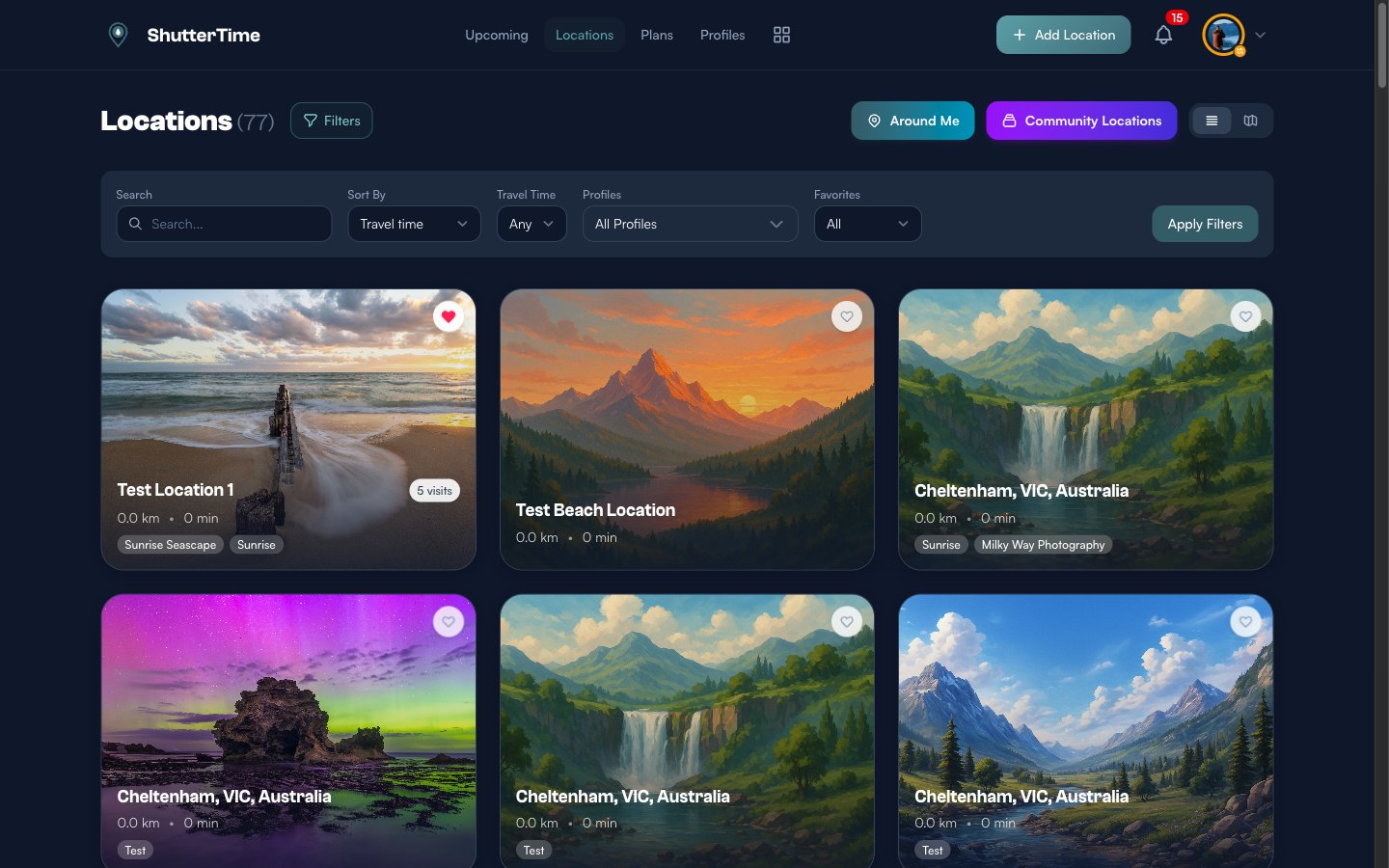
The Filters button displays a badge showing how many filters are active. You can also sort by Recently Favorited using the Sort By dropdown to see which locations you saved most recently.
To clear the filter and see all locations again, open the filter panel and click Clear all.
How Notifications Work
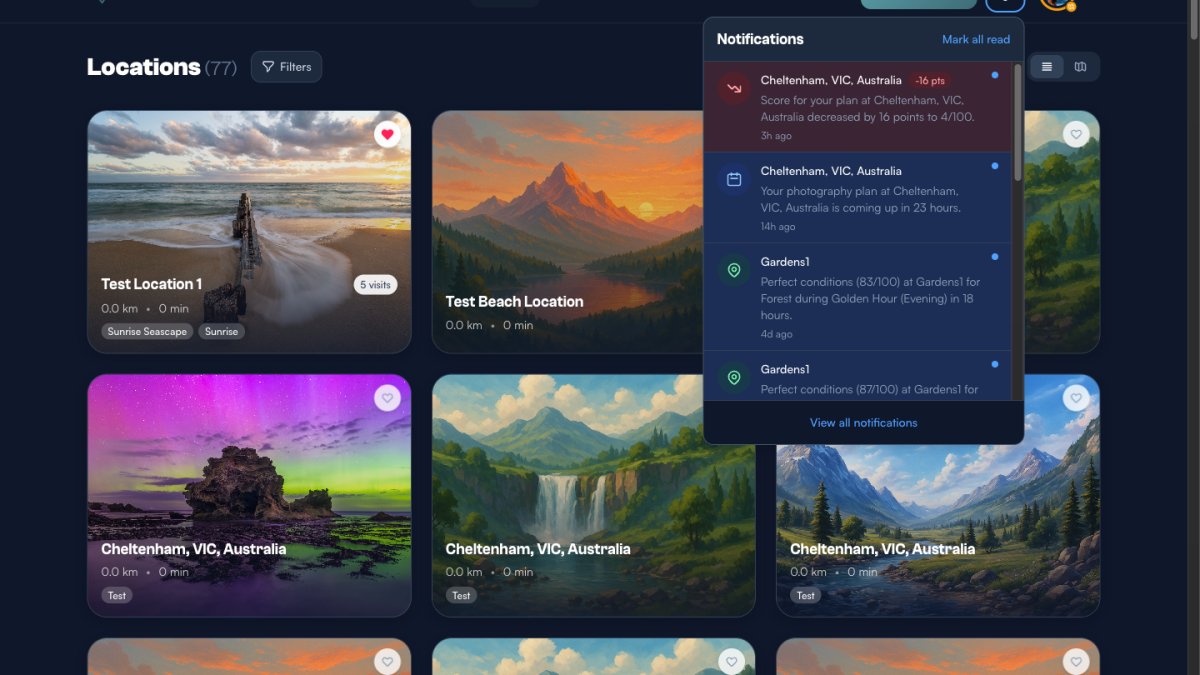
ShutterTime keeps you informed with notifications about your plans and favourite locations. The bell icon in the navigation bar shows your unread notification count as a red badge.
Click the bell to open a quick-view dropdown showing your most recent notifications. Each notification includes an icon indicating its type, the location name, a short description, and the time it was sent.
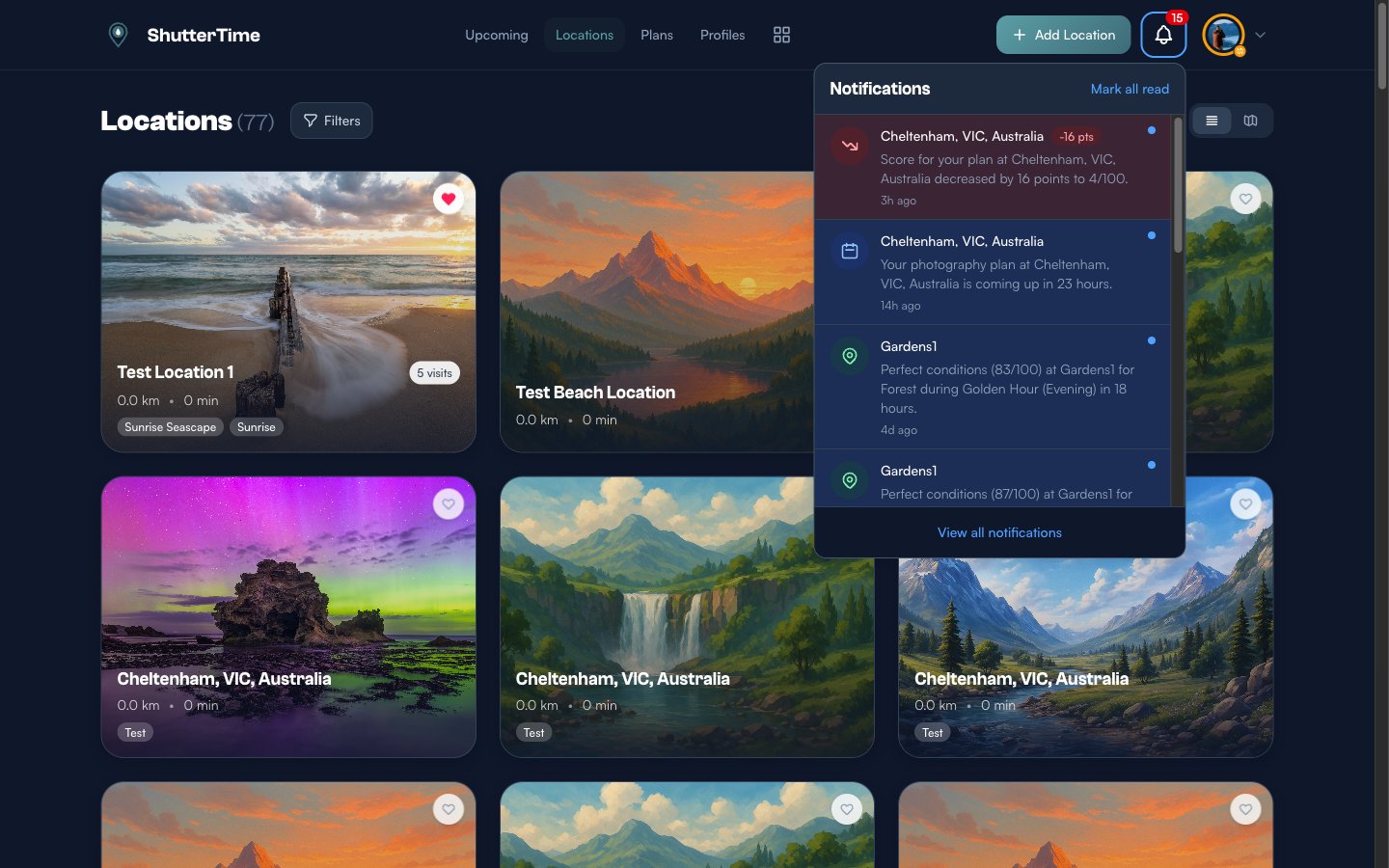
You will see several notification types:
- Plan reminders — Sent before your scheduled photography plans so you have time to prepare.
- Score changes — Alerts when conditions for a planned shoot improve or worsen, with the point change shown in green (positive) or red (negative).
- Condition alerts — Triggered when a favourite location hits your target score, including the profile name, score, and time window.
- Auto-plan notifications — Sent when ShutterTime automatically creates a plan for a favourite location with excellent conditions.
Click Mark all read to dismiss the unread dots, or click View all notifications to open the full notifications page.
The Notifications Page
The full notifications page shows your complete notification history. Each notification is displayed as a card with its icon, location name, message, and timestamp. Unread notifications are marked with a blue dot on the right.
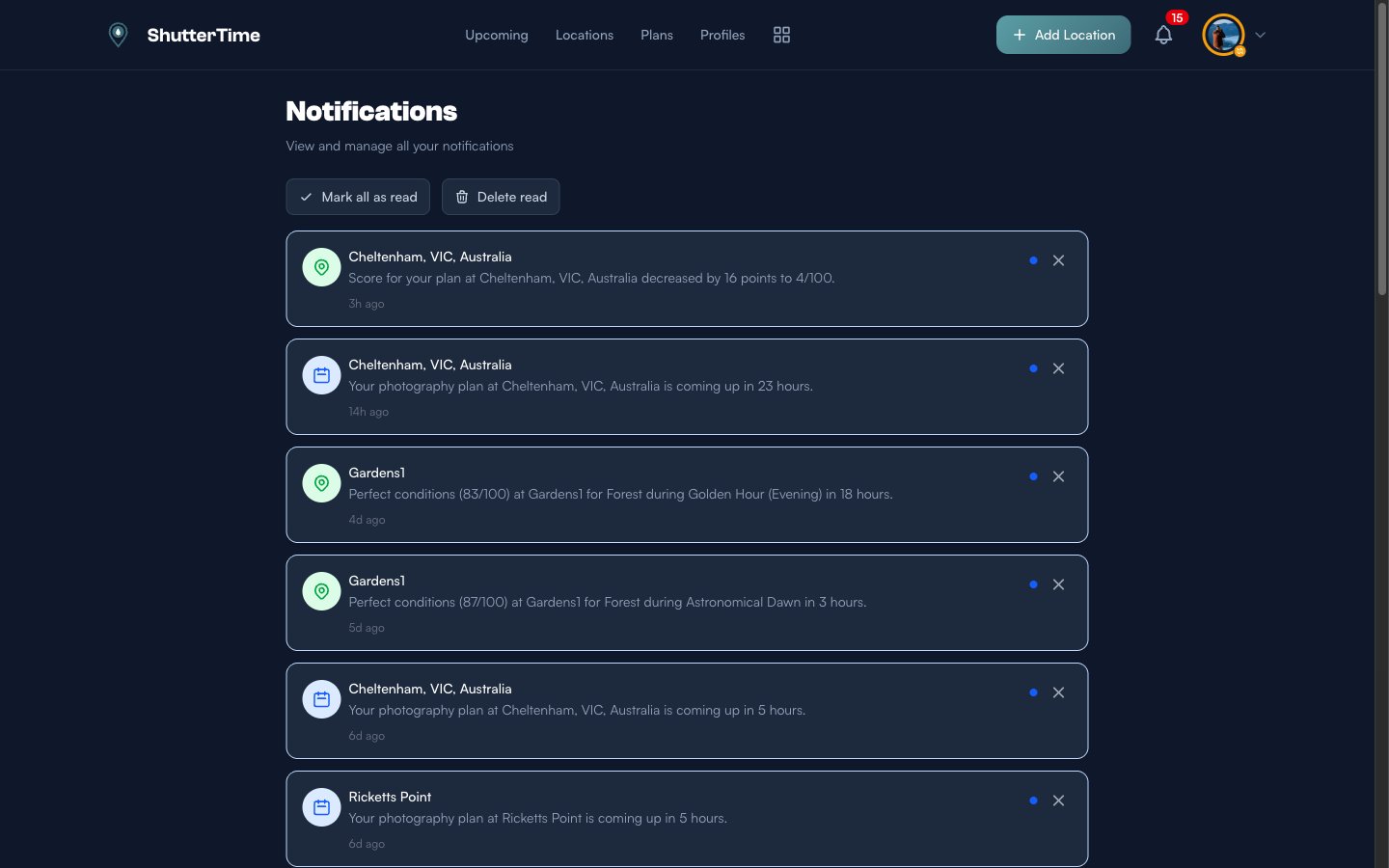
At the top of the page, two action buttons let you manage notifications in bulk:
- Mark all as read — Clears all unread indicators at once.
- Delete read — Removes notifications you have already seen, keeping your list tidy.
You can also delete individual notifications by clicking the X button on any card. Click a notification to navigate directly to the related plan or location.
Setting Up Notification Preferences
To control which notifications you receive, navigate to Account Settings and click the Preferences tab. The Notification Types section shows toggle switches for each category:
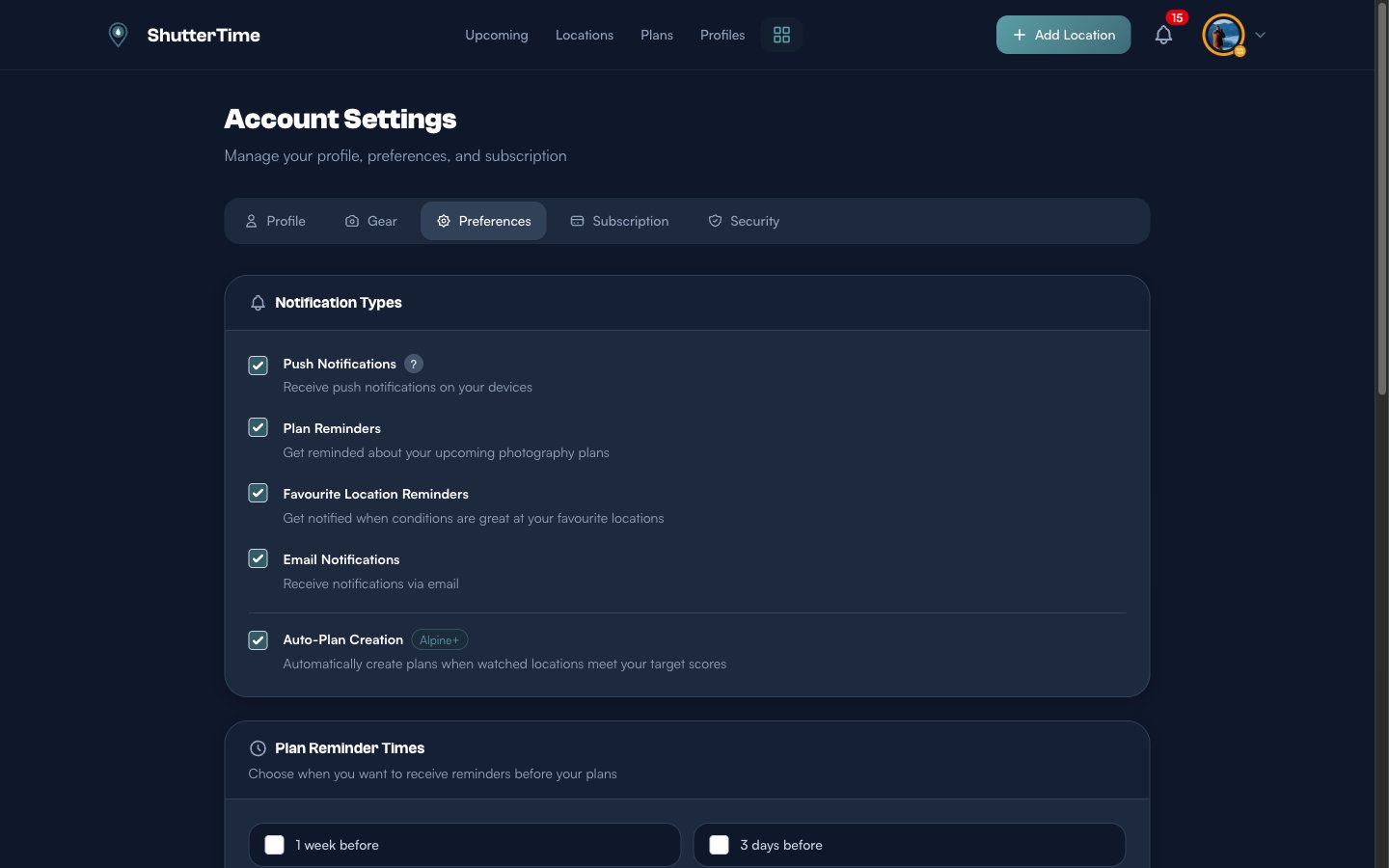
- Push Notifications — Receive alerts on your devices (browser or mobile app).
- Plan Reminders — Get notified before upcoming photography plans.
- Favourite Location Reminders — Receive alerts when conditions are great at your favourite locations.
- Email Notifications — Get notifications delivered to your email inbox.
- Auto-Plan Creation — Automatically create plans when watched locations meet your target score. This feature is available on Alpine and Summit plans.
Toggle each option on or off depending on how you want to stay informed. Remember to click Save Preferences at the bottom of the page after making changes.
Plan Reminders
Below the notification toggles, the Plan Reminder Times section lets you choose exactly when you want to be reminded before a scheduled shoot. You can select multiple intervals:
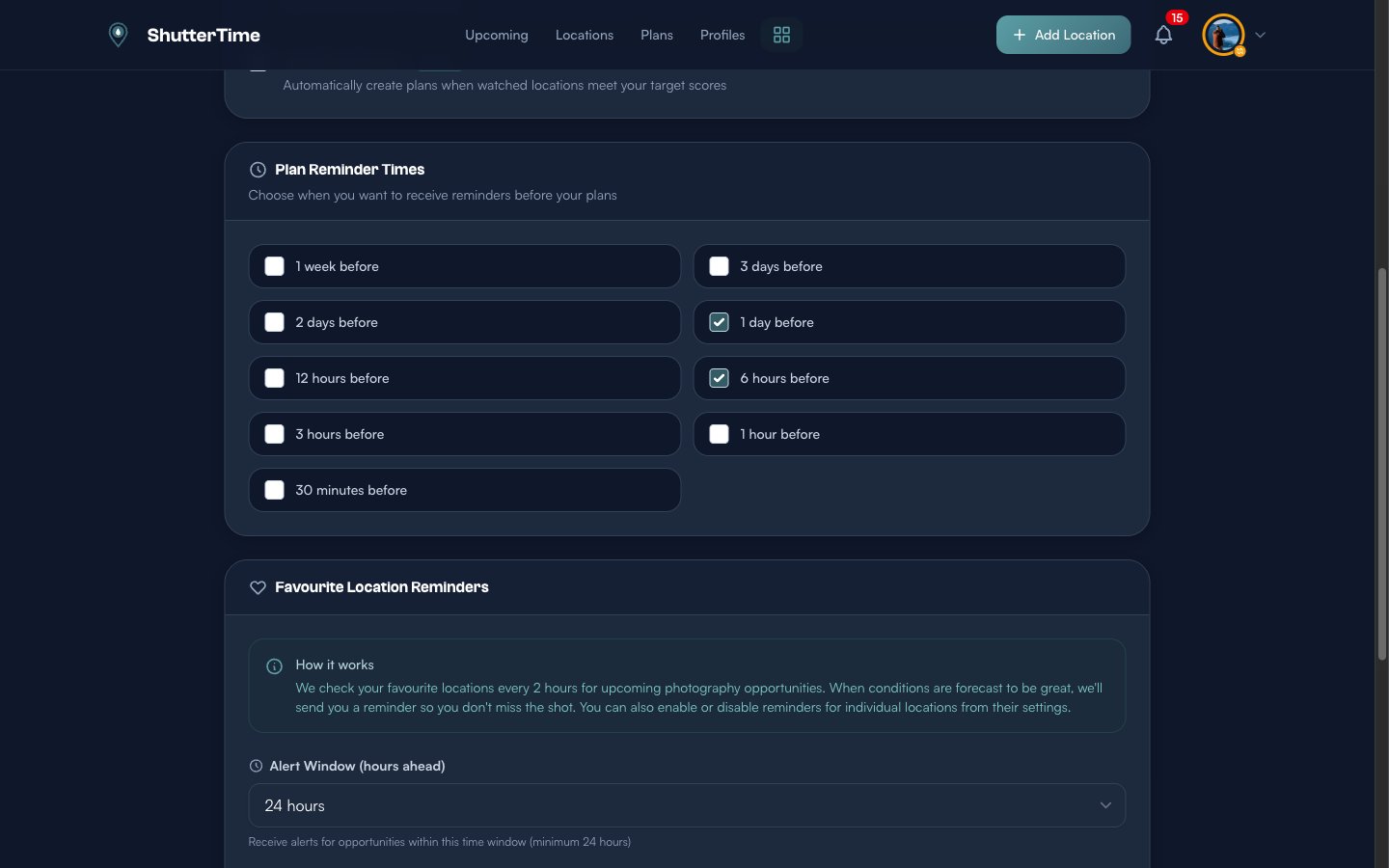
Options range from 1 week before down to 30 minutes before. For example, you might select 1 day before to plan your gear and 6 hours before as a final conditions check. ShutterTime sends a reminder at each selected interval, so you can layer them to match your preparation routine.
Favourite Location Alerts
The Favourite Location Reminders section controls how ShutterTime monitors your favourite locations for great conditions. A helpful explanation at the top describes how the system works — ShutterTime checks your favourite locations regularly for upcoming photography opportunities, and sends you a reminder when conditions are forecast to be great.
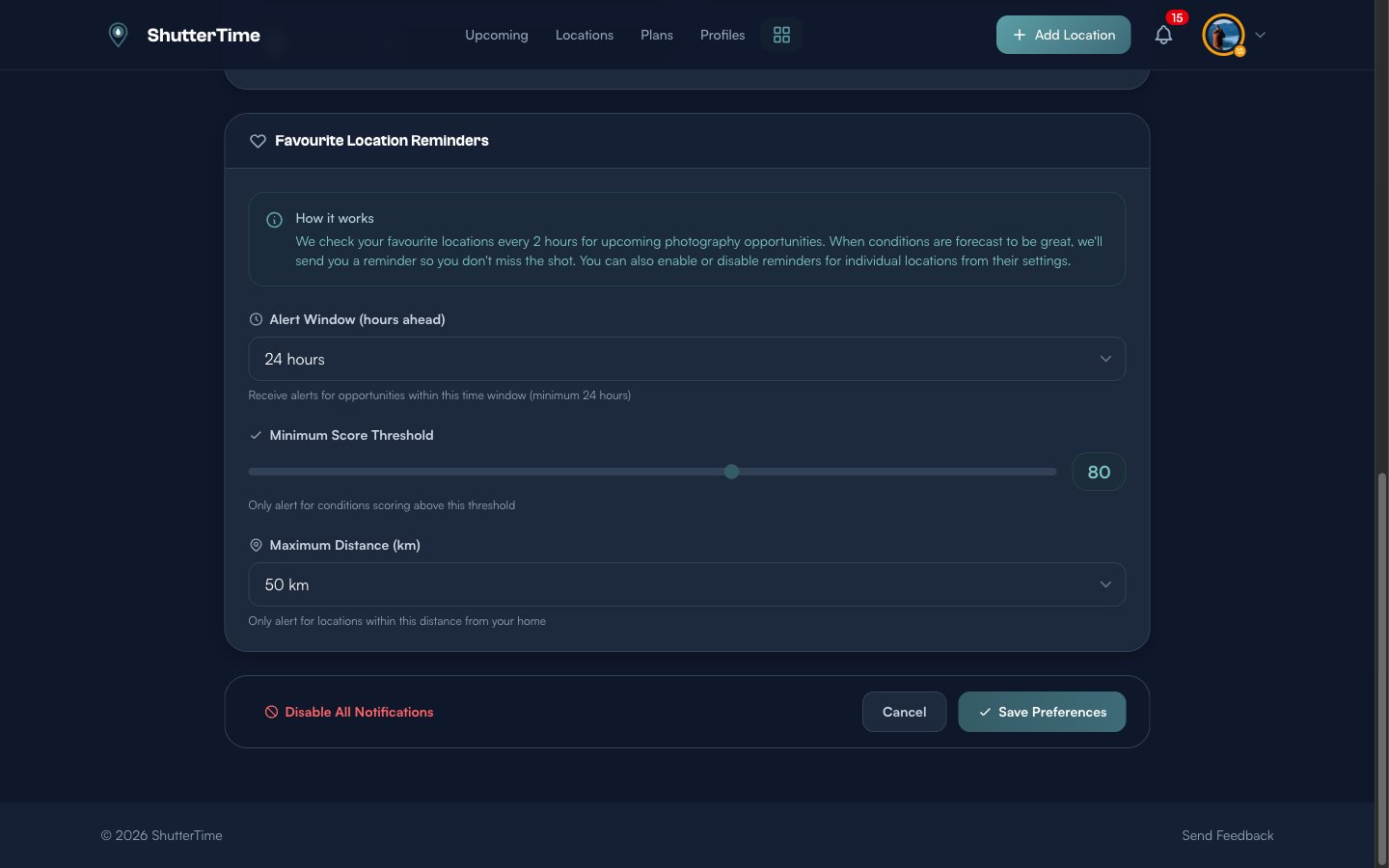
Three settings let you fine-tune these alerts:
- Alert Window — How far ahead ShutterTime looks for opportunities. Choose 24, 48, or 72 hours. A shorter window means you only get alerted about imminent conditions.
- Minimum Score Threshold — The minimum score a condition must reach before you are notified. Drag the slider between 50 and 100. Setting it to 80 means you only hear about genuinely good conditions.
- Maximum Distance — Limits alerts to favourite locations within a certain distance from your home base. Set this to match how far you are willing to drive for a shoot.
You can also enable or disable alerts for individual favourite locations. When you favourite a location, condition notifications are enabled by default — but you can toggle them off from the location detail page if you want to keep a location saved without receiving alerts for it.
What's Next?
Now that you know how to save favourites and customise notifications, explore these related features:
- Browse your locations — Filter and sort your collection to find the perfect spot
- Create a photography plan — Schedule a shoot and set up reminders so you never miss the moment
- Build custom profiles — Define exactly which conditions matter for your style of photography
- Explore the community — Discover location packs shared by other photographers and add them to your favourites