Collaborate on a Photo Session — Invite Friends to Your Plan
Planning Intermediate
Photography is often a solitary pursuit — just you, your camera, and the light. But some of the best sessions happen when you bring friends along. A s...

6 min read
Published February 19, 2026
Photography is often a solitary pursuit — just you, your camera, and the light. But some of the best sessions happen when you bring friends along. A second pair of eyes spots compositions you’d miss. A fellow photographer keeps you motivated during a 4 AM alarm. And sharing the excitement of a spectacular golden hour is simply better with company.
ShutterTime’s collaboration features make it easy to invite other photographers to your planned sessions. You can send a direct email invitation to someone specific, or generate a public share link to post in your photography group. In this tutorial, you’ll learn how to plan a session, review the conditions, and invite others to join you.
Start with a Plan
Before you can invite anyone, you need a plan. Head to the Upcoming page from the top navigation — this is your photography forecast, showing the best opportunities across all your saved locations for the coming days.
Each opportunity card shows the location name, the astronomical phase (like Golden Hour or Sunset), a colour-coded score, and your estimated travel time. When you spot an opportunity worth shooting, tap the Plan button on the right side of the card.
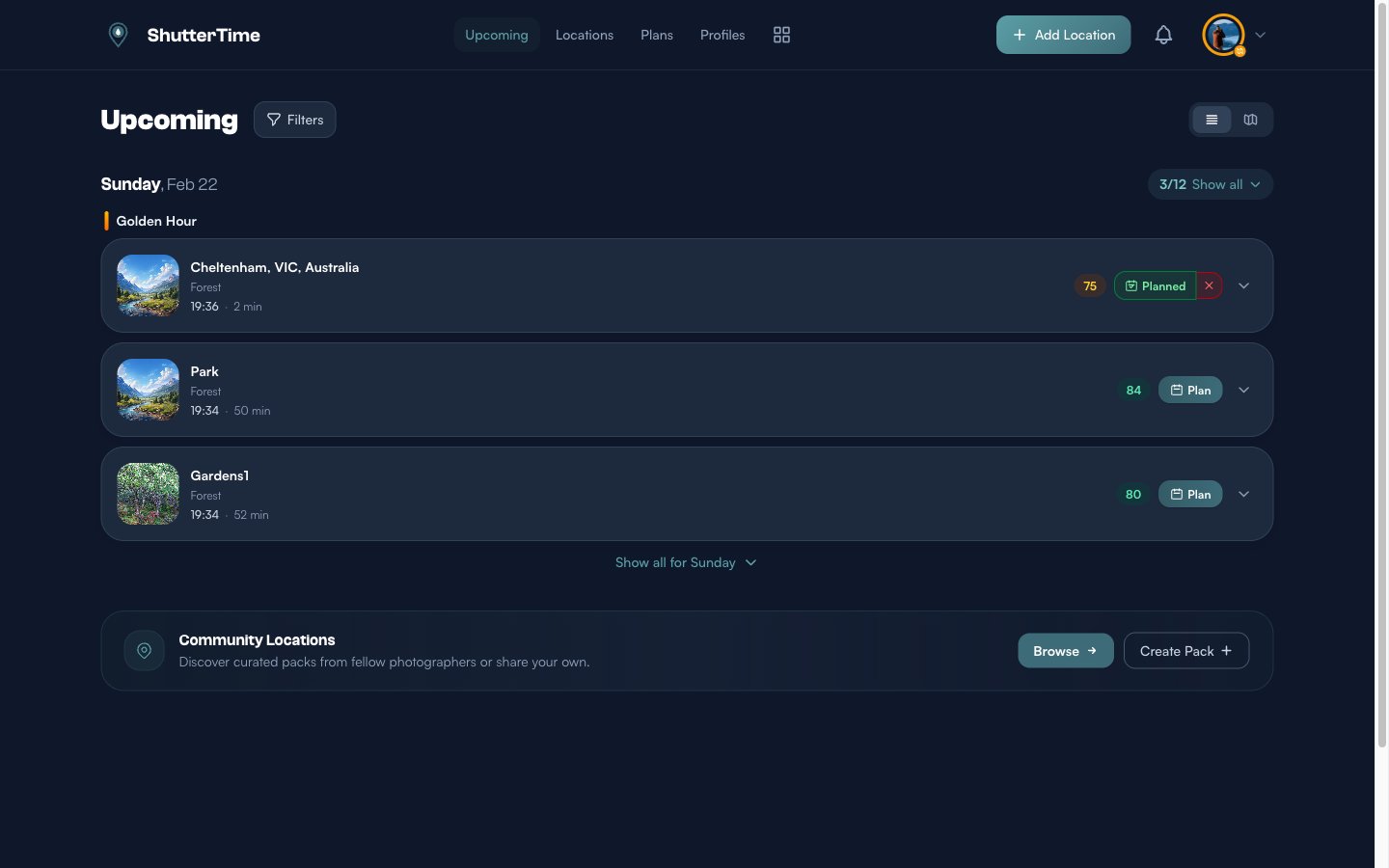
The button instantly changes to Planned with a green highlight — your session is locked in. You can now find it on the Plans page at any time.
Review Your Session Details
Tap the Planned badge or navigate to Plans from the top menu to open your plan’s detail page. This is your mission control for the session — everything you need to decide whether conditions are worth the trip.
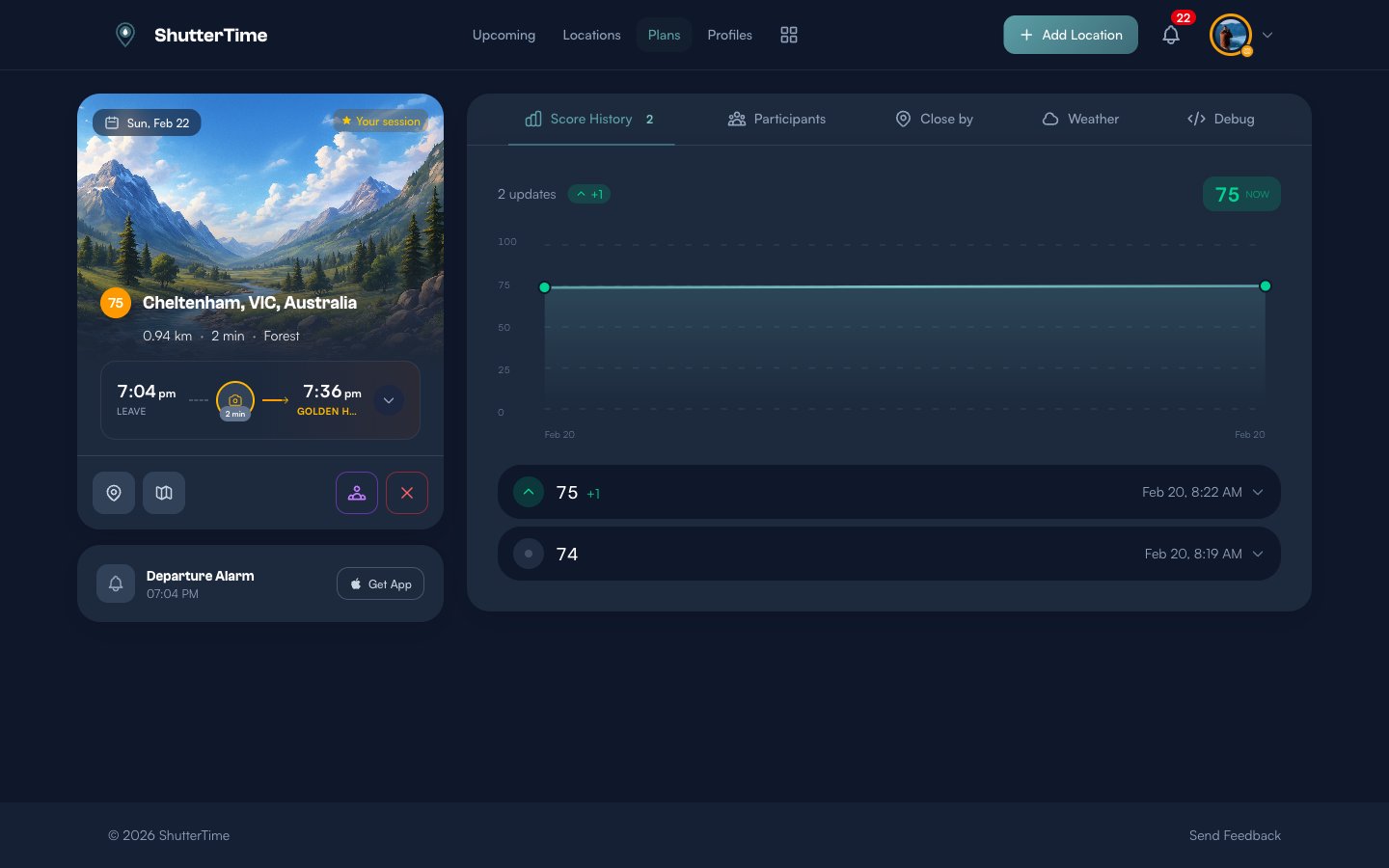
The left panel shows your plan card with the location photo, score badge, travel time, and the departure timeline strip. The Score History tab on the right tracks how conditions have changed since you created the plan — helping you decide if the forecast is trending up or down.
Before inviting friends, check the Weather tab to confirm conditions look favourable. The forecast table shows hourly data for temperature, cloud cover at three levels, wind speed, humidity, and rain probability. The row closest to your session time is marked with a PLAN badge.
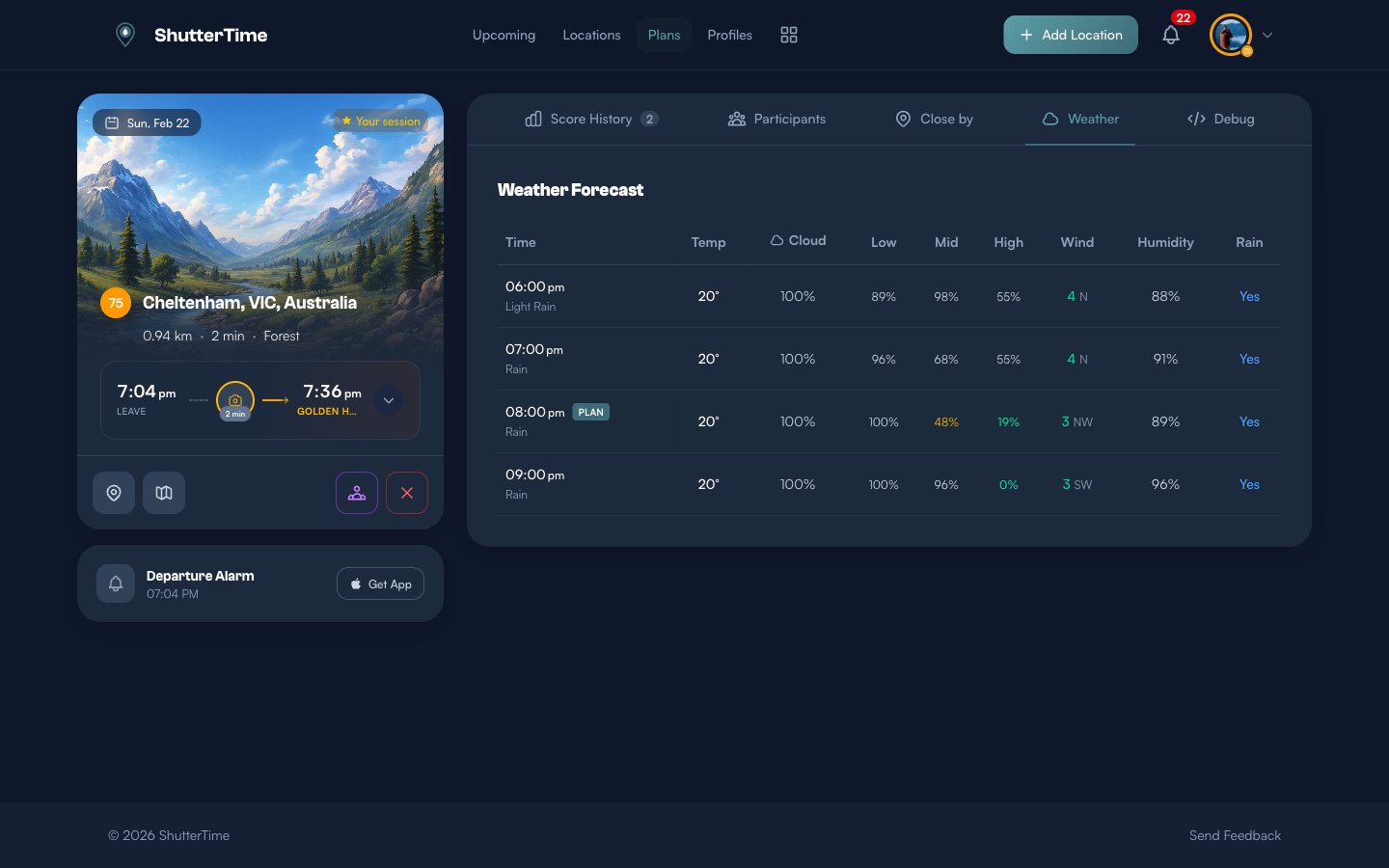
With the weather checked and conditions looking good, you’re ready to invite others.
Open the Participants Panel
Click the Participants tab at the top of the right panel. If this is a fresh plan, you’ll see an empty state with an Invite Participants button front and centre. There’s also a smaller Invite button in the top-right corner that’s always visible once you have participants.
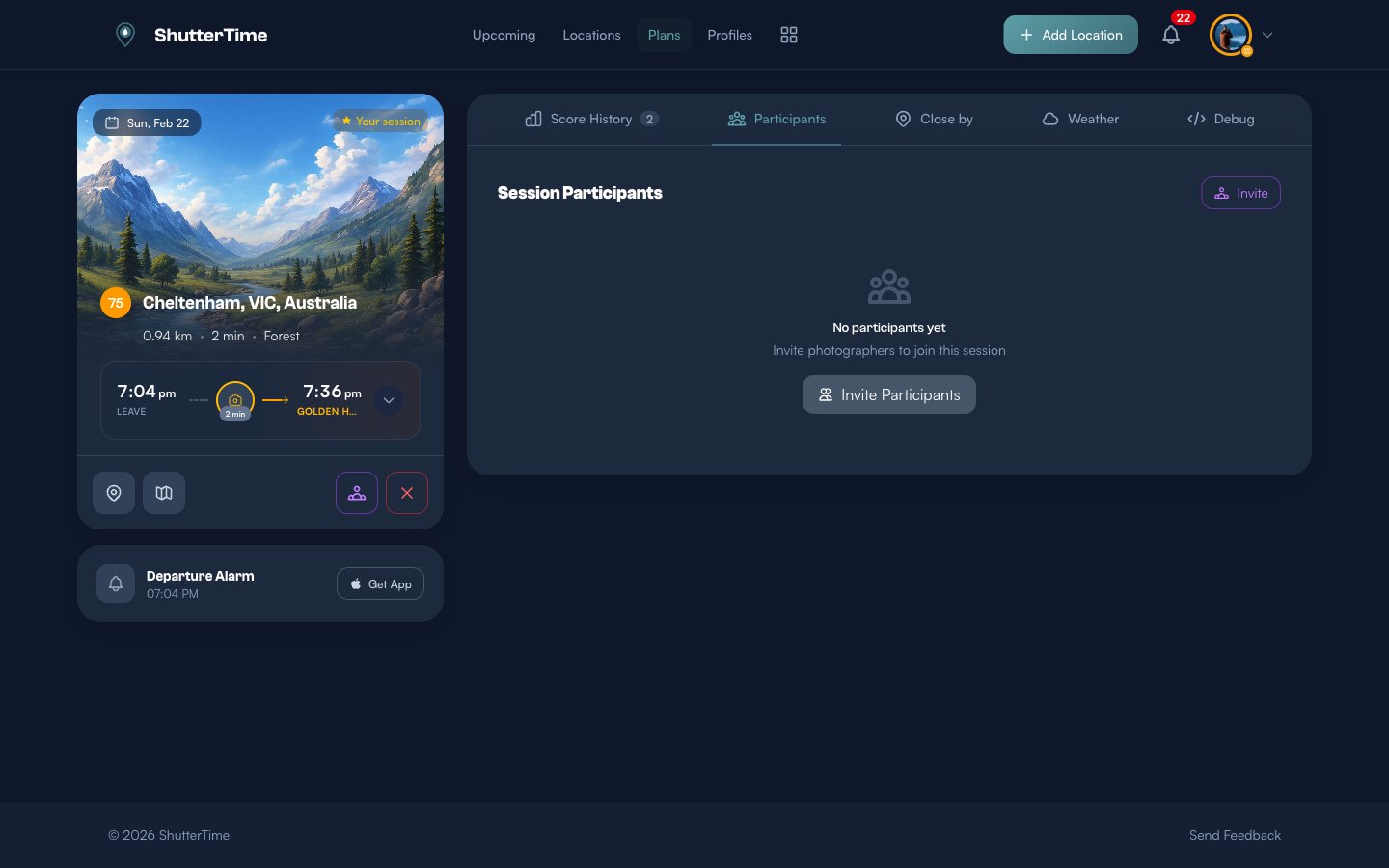
You’ll also notice the purple collaborator icon in the bottom action bar of the plan card — tapping that opens the same invitation panel.
Invite a Friend by Email
Click Invite to open the collaboration modal. The first tab, Invite by Email, lets you send a direct invitation to someone’s inbox.
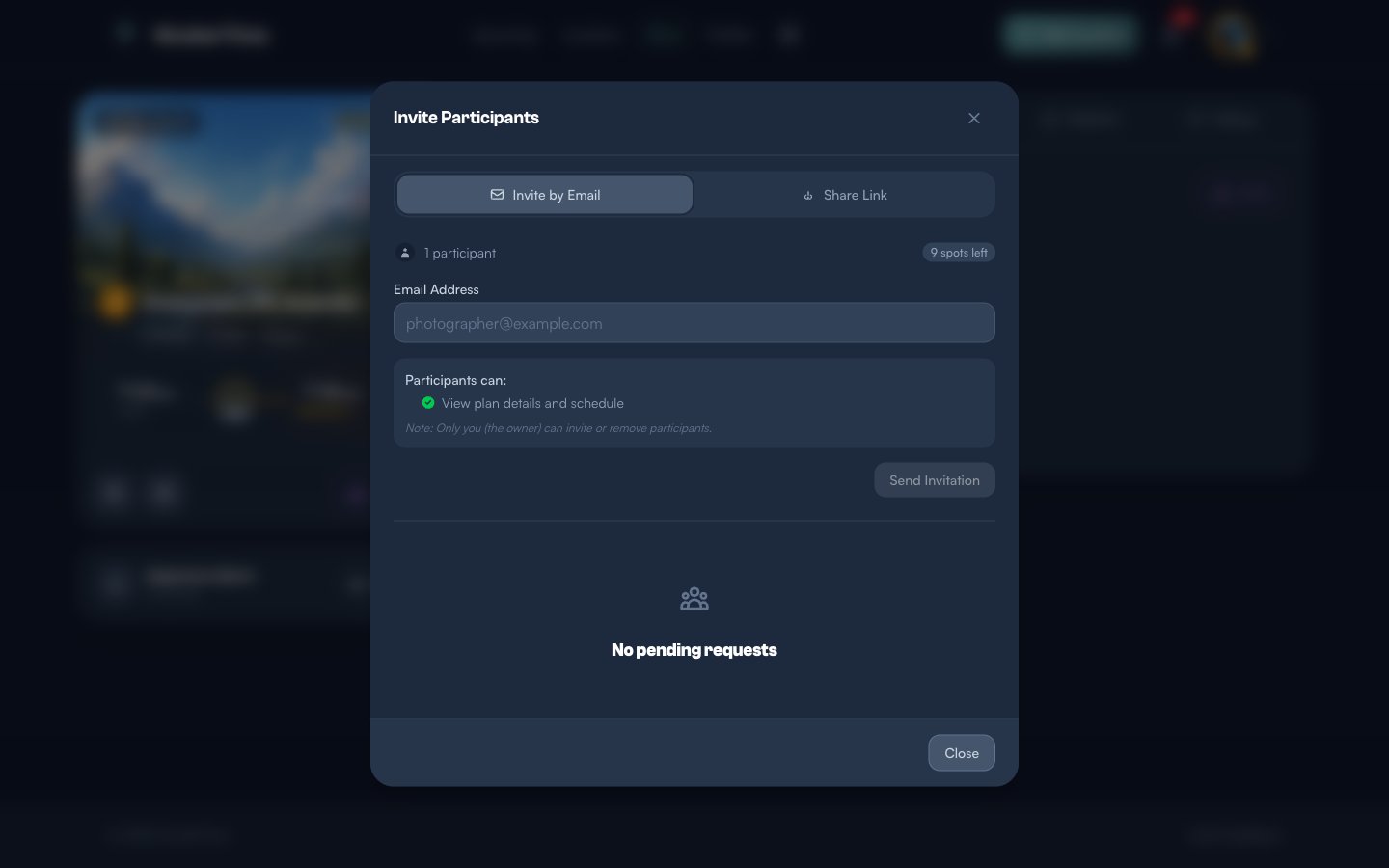
Type your friend’s email address into the field. The counter at the top shows how many spots remain — each plan supports up to 10 participants including the owner. Once you’ve entered a valid email, click Send Invitation.
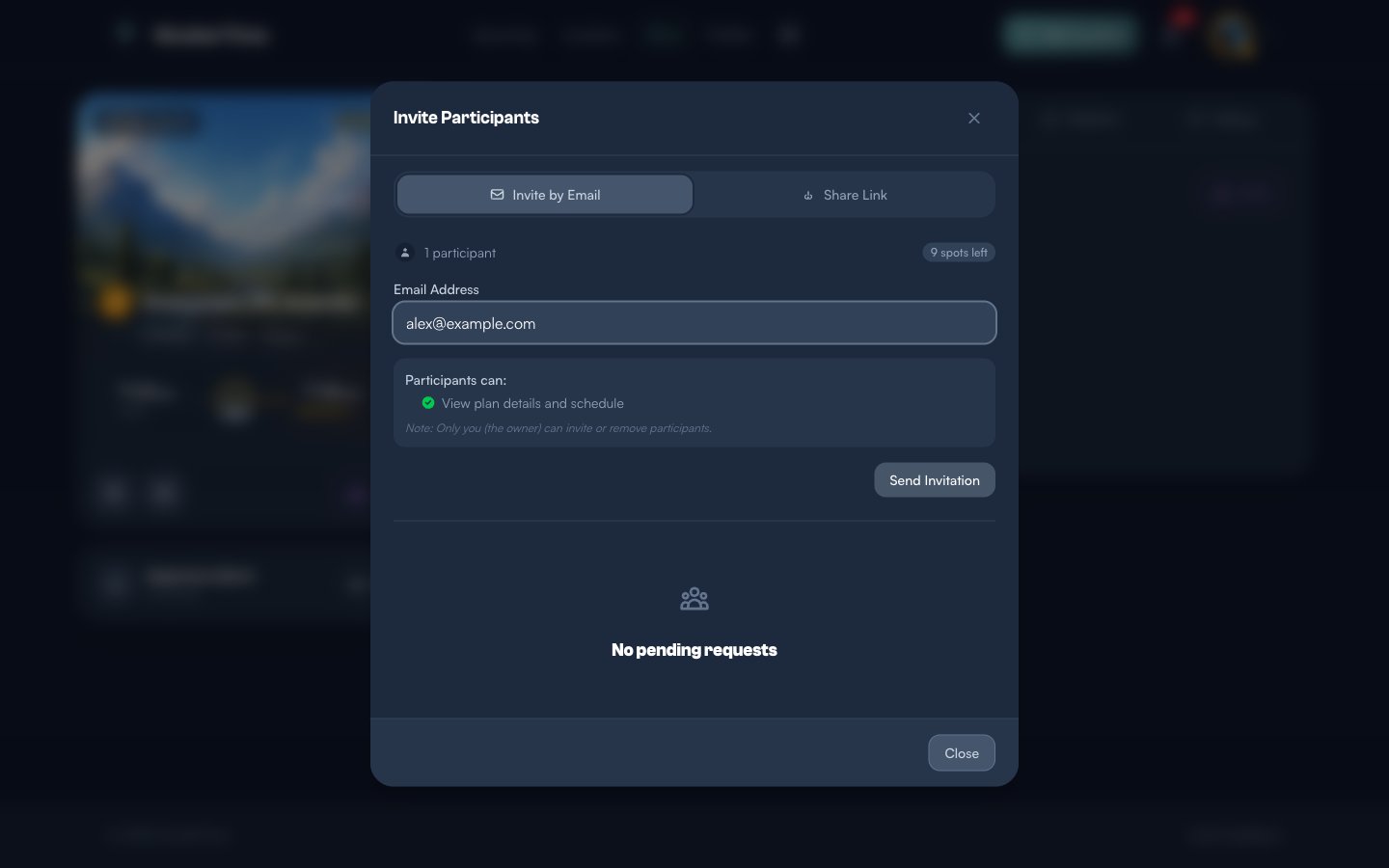
ShutterTime sends an email notification to your friend with details about the session — the location, date, phase, and a link to accept. You’ll see a confirmation message and the invitation appears in the Pending Requests section below.
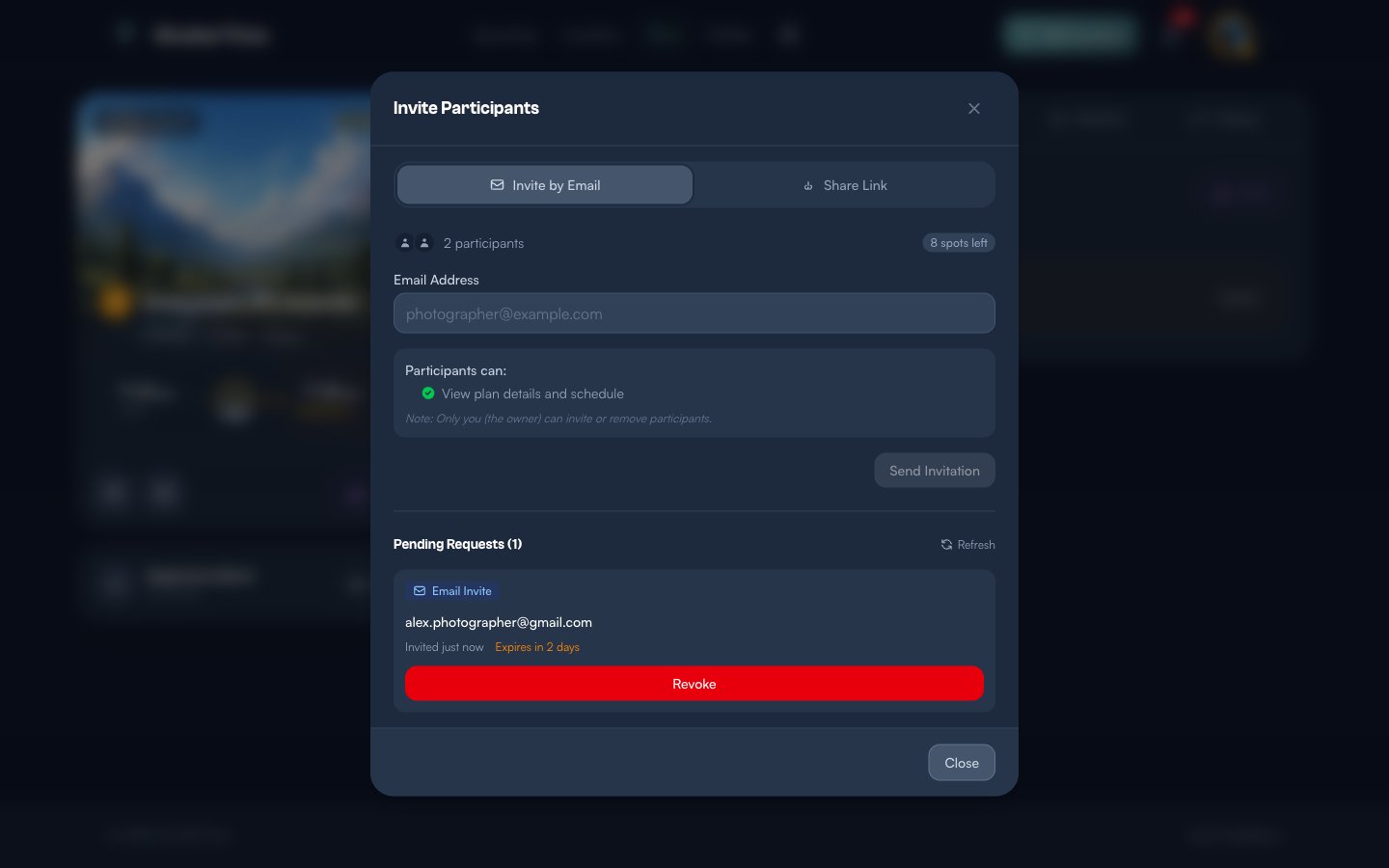
Each invitation expires when the plan’s session time arrives — so there’s no stale invite sitting in someone’s inbox forever. If you change your mind, you can Revoke any pending invitation before it’s accepted.
What Your Friend Receives
Your friend gets an email and an in-app notification (if they have a ShutterTime account). The notification includes the session location, date, and time. They can accept or decline with a single tap.
Once they accept, they appear as a collaborator on your plan — they can view all the same plan details, weather forecasts, and score updates. Only you, the plan owner, can invite or remove participants.
Share a Public Link
Sometimes you want to share your plan more broadly — perhaps in a photography group chat, a forum, or on social media. That’s where the Share Link tab comes in.
Click the Share Link tab in the invitation modal. You’ll see a Public Sharing toggle that’s off by default.
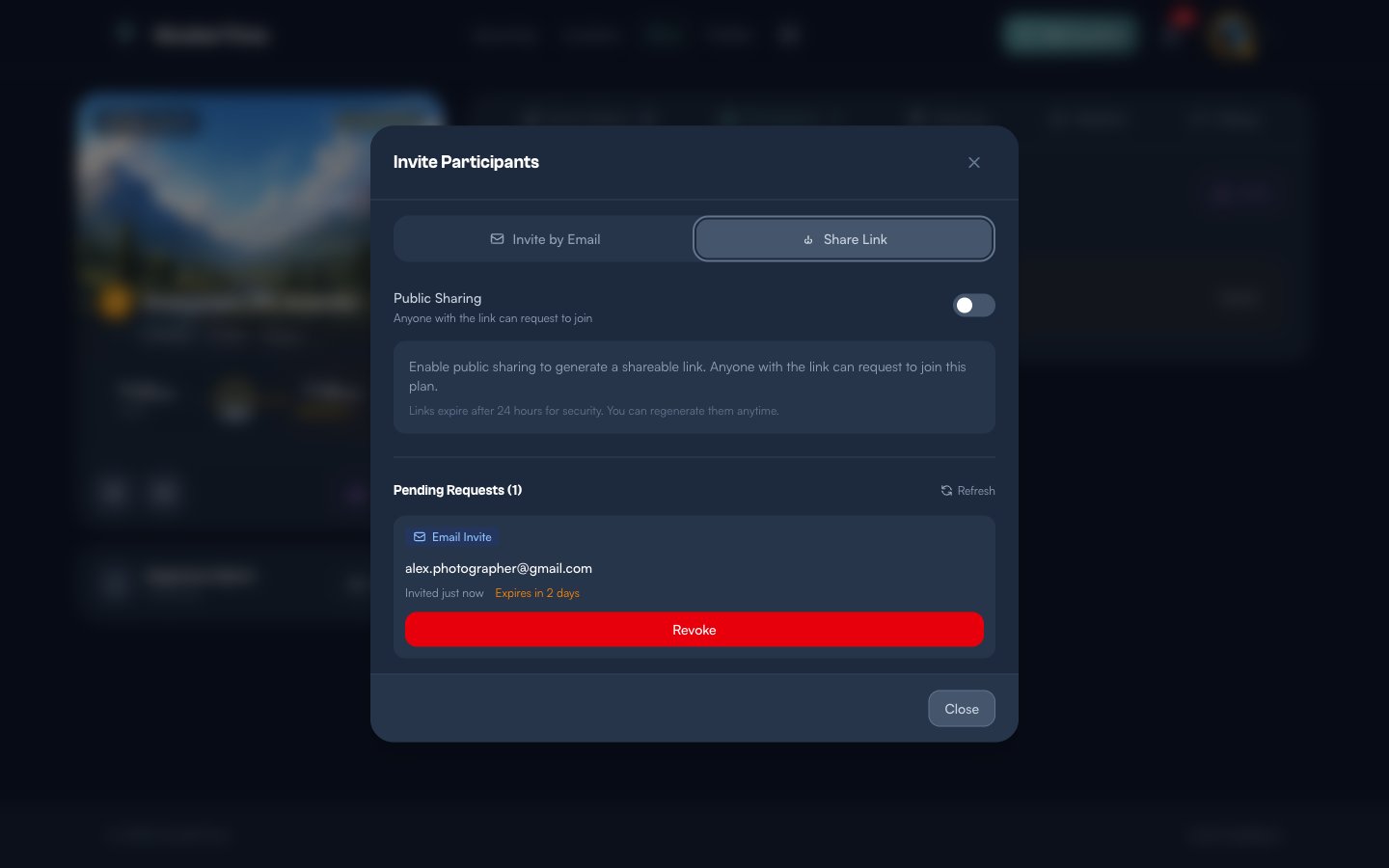
Flip the toggle to enable sharing. ShutterTime generates a unique URL that anyone can use to view your plan details and request to join.
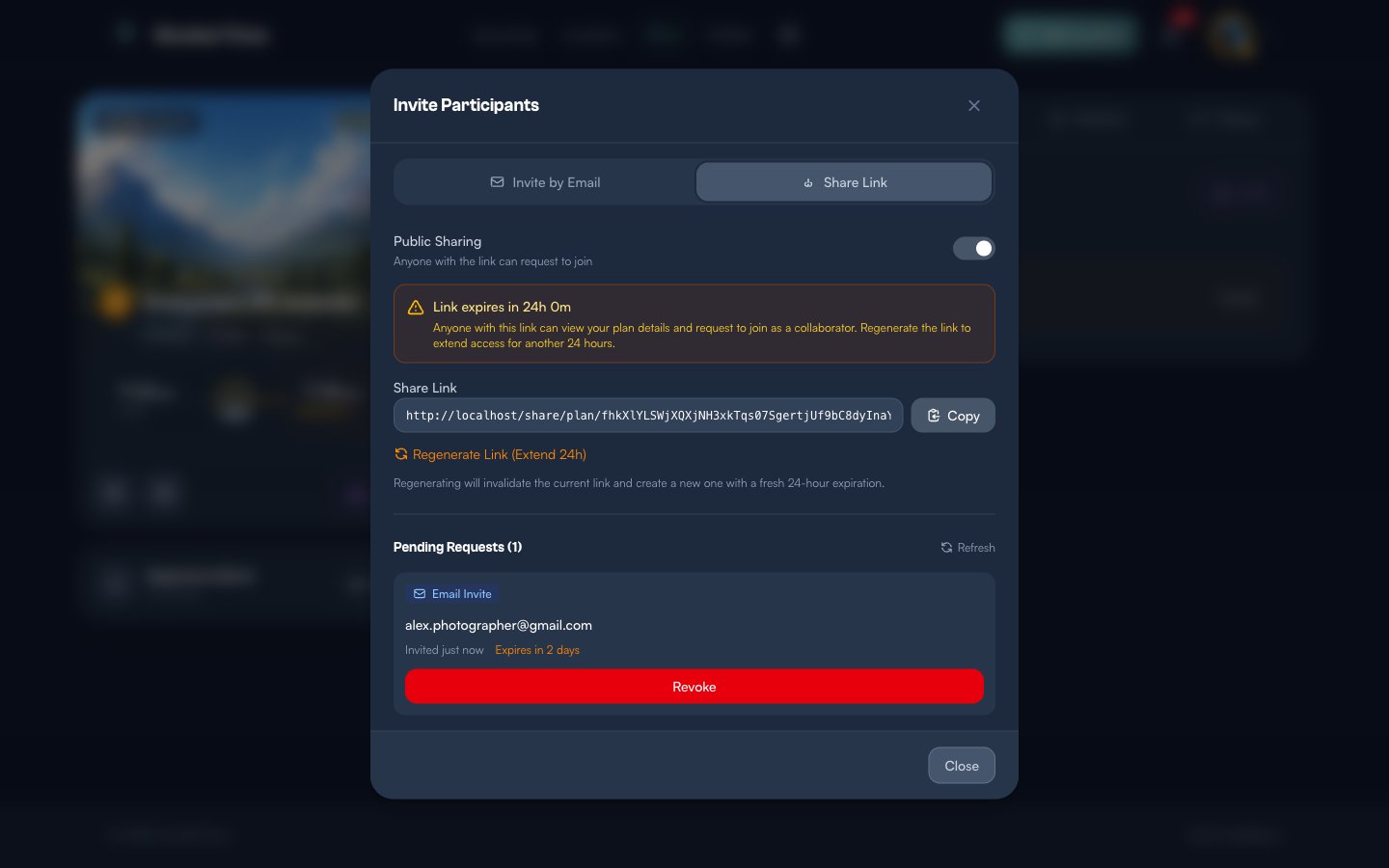
A few things to know about share links:
- 24-hour expiry — links automatically expire after 24 hours for security. Click Regenerate Link to create a fresh one with a new 24-hour window.
- View-only access — anyone who opens the link can see your plan details (location, time, conditions) but cannot modify anything.
- Copy and share — click the Copy button to copy the link to your clipboard, then paste it wherever you like.
- Revocable — turn the toggle off at any time to disable the link instantly.
Managing Your Participants
Close the modal and you’re back on the Participants tab, which now shows your pending invitations with their status.
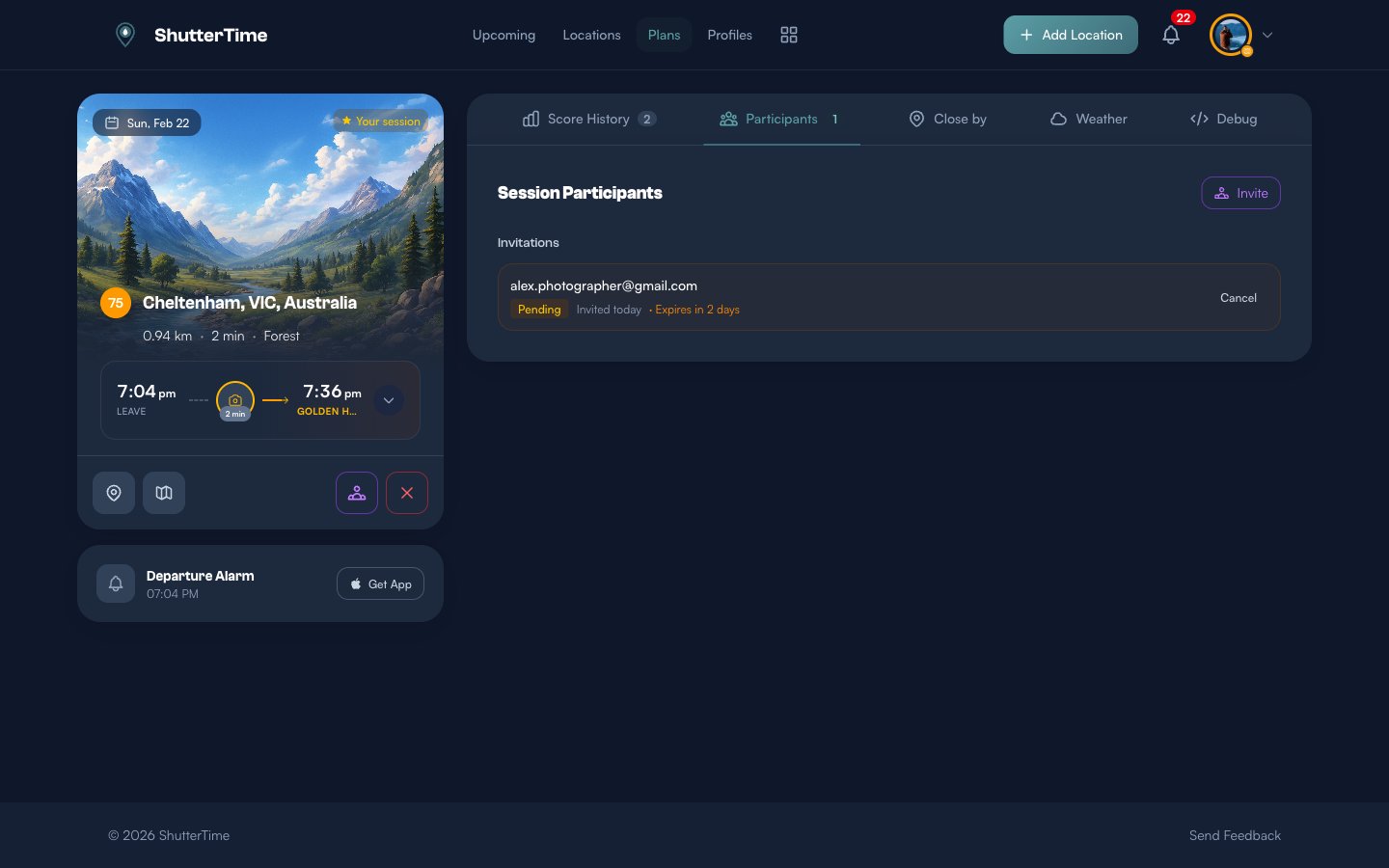
From here you can:
- Cancel a pending invitation before it’s accepted
- Remove a collaborator who has already joined (their access is revoked immediately)
- See a history of who was invited, when they accepted, and whether anyone has left
The Participants tab badge in the navigation shows the total number of active invitations and collaborators, so you always know the headcount at a glance.
Your Plan Card on the Plans Page
Navigate to Plans from the top menu to see your session card with all the details — including the collaborator icon that now indicates this is a collaborative session.
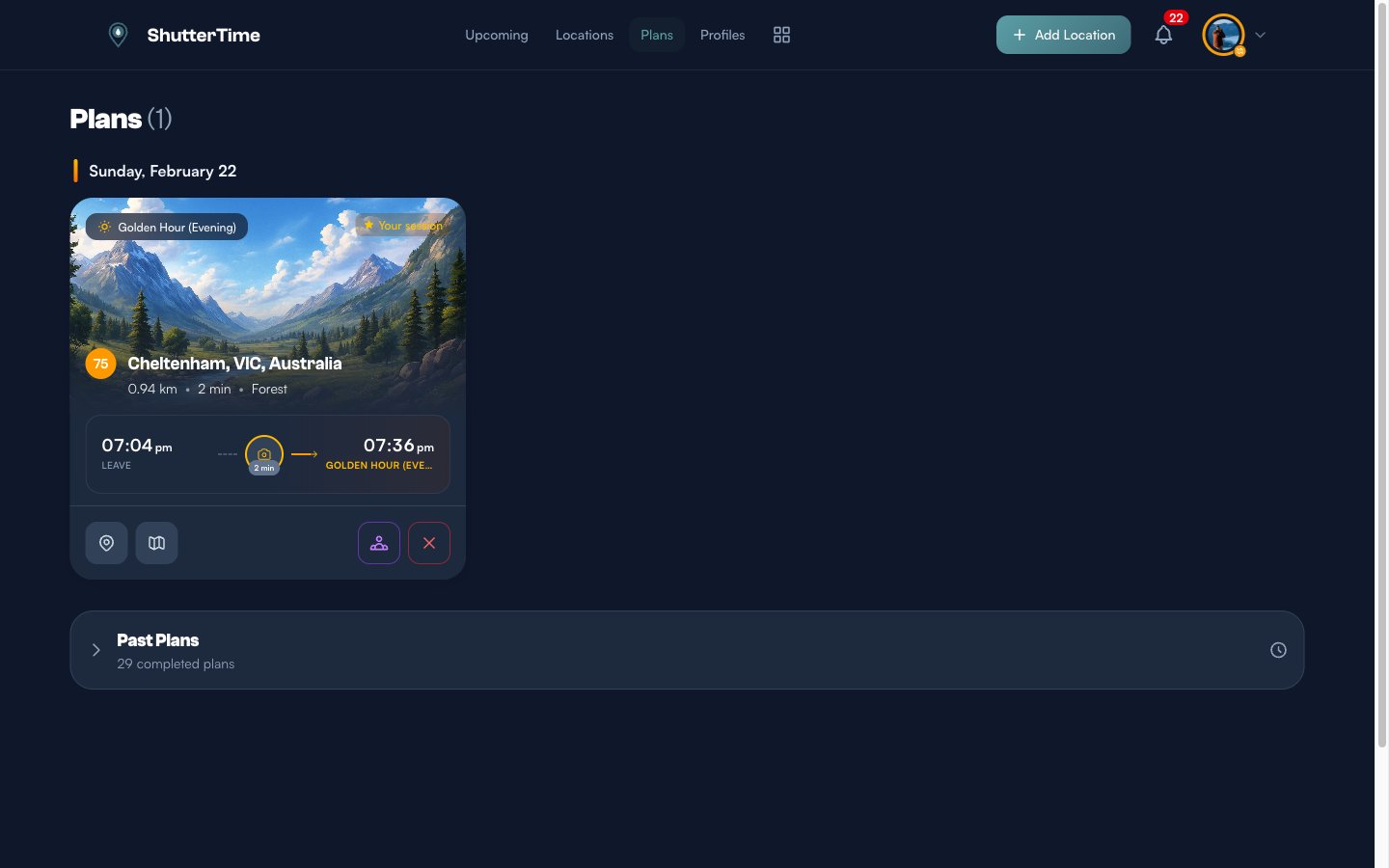
The plan card gives you everything at a glance: the phase you’re targeting, your departure time, travel duration, and quick-access buttons to view the location, get directions, invite more collaborators, or cancel the plan.
Final Thoughts
Collaborating on a photography session turns a good shoot into a great experience. Here are a few tips for making the most of group sessions:
- Invite early — give your friends time to check conditions and prepare their gear. ShutterTime’s score tracking means everyone can watch how conditions evolve together.
- Use share links for groups — if you’re posting in a photography club or group chat, the public link is the easiest way to get people on board.
- Use email invites for close friends — direct invitations send a proper email notification and create a cleaner participant list.
- Check the weather together — the Weather tab is a great conversation starter. Discuss cloud formations, wind conditions, and whether to bring a jacket.
- Meet at the location — each collaborator can see the travel time from their own home location, so everyone arrives prepared.
The best photographs often come from unexpected moments — and those moments are richer when shared. Happy shooting!
What’s Next?
Now that you know how to collaborate, explore these related features:
- Planning Your Photography Sessions — a deep dive into plan creation, phase timelines, score tracking, weather data, and tide charts
- Mastering Photography Profiles — understand how profiles and conditions drive the scores you see on every plan
- Auto-Watch — let ShutterTime automatically create plans when conditions hit your threshold
- Favourites & Notifications — set up alerts so you never miss a great opportunity